Path to Raytracing | Part 2
Read Part 1 Here
Drawing On Screen
Before we move on to shading, let’s talk about how we see the images captured. There are multiple file types which store information about each pixel and an Image viewer app can go through this ordered list of pixels, and can draw them on screen.
Some of the multiple file types are, .png, .jpg, etc. These file types are just protocols to store a grid of pixels. Each file type has a specific protocol it follows. PNG, JPG, etc are complicated file types for us. We want to focus more on the ray tracing itself, than writing a PNG file saver. Instead, there are file type protocols, like the .ppm file type which helps us do our job way easier.
A simple ppm file layout/protocol looks like this, according to the ppm/pam protocol:
P(VERSION)
(WIDTH) (HEIGHT)
(MAX VALUE)
(DATA)
We’ll be following version 3 (Which says, There are 3 components in the data, i.e R, G, B). Our width and height is going to be stored inside the camera. The max value, as discussed earlier, is one unsigned byte, or 255 in terms of an integer. (An unsigned byte ranges [0, 255], whereas a signed byte ranges [-128, 127])
Let’s take an example .ppm file
P3
2 3
255
0 0 0 255 0 0
0 255 0 0 0 255
128 128 128 255 255 255

As you can see, we take 3 sets of numbers together to form one color.
WIDTH = 2
HEIGHT = 3
0 0 0 = BLACK
255 0 0 = RED
0 255 0 = GREEN
0 0 255 = BLUE
128 128 128 = GRAY
255 255 255 = WHITE
There is a program called ‘ffmpeg’ which can be downloaded online. It allows me to convert a .ppm file to a .png file which a normal picture viewer can read and display. These modern viewers cannot view a .ppm file. I’ll let you surf the web and figure out how to use ffmpeg.
Also remember, the normal picture viewer apps try to blend in the color when there are less pixels, and when you zoom in. For example, the previous .ppm when converted to a .png file looks like this using my default png viewer.
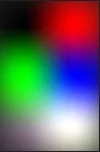
I use vscode’s inbuilt png viewer to view small png files, as that doesn’t blend pixels together when I zoom in.
To depict a 2D Grid of pixels- wait it can’t be 2D. We have 3 color channels per pixel. 2 Dimensions of size. So this entire grid is actually 3D. 2 Dimensions of size, and 1 Dimension of color.
Now, to depict this, we can make use of a 3D Matrix. Many languages allow us to make use of Matrices. I however had a few things in mind (such as parallelism, and I didn’t know how race cases worked in Cpp, If you haven’t heard of these, it’s fine), and didn’t really know what to do. I went with a very complicated approach.
I flattened out the fixed 3 Dimensional grid, onto a 1 Dimensional array, and then sequentially wrote it down in an image form.
In mental representation:
| (0, 0, 0) | (255, 0, 0) |
| (0, 255, 0) | (0, 0, 255) |
| (128, 128, 128) | (255, 255, 255) |
passing the above representation through a coordinate function, gives us a linear layout which can be stored in memory
| (0, 0, 0) | (255, 0, 0) | (0, 255, 0) | (0, 0, 255) | (128, 128, 128) | (255, 255, 255) |
And then write it down to a ppm file,
P3
2 3
255
0 0 0 255 0 0 0 255 0 0 0 255 128 128 128 255 255 255
The file format doesn’t care about new lines. It knows when to start a new row of pixels due to the WIDTH, and HEIGHT option defined before 255 (MAX VALUE).
Which then gets converted to a .png using ffmpeg, to this:

The function which unwraps a 2D coordinate into a 1D array looks like this:
As the 3rd dimension is just color (for the most part, we can say we’ll be storing 3 colors, my project sometimes stores 4, 3, 1 colors for various different use cases), we can just skip 3 pieces of memory for every ‘pixel’.
// this => Image
inline unsigned char* get_pixel(int y, int x) const {
    return (this->pixel) + (y)*(this->width)*this->filetype + (x)*this->filetype;
};
this->pixels refers to the pointer to the 1st index of the 3D grid of pixels. this->filetype can be assumed to just be 3 (R, G, B) for our devlog use case.
Therefore the function just looks like this:
// this => Image
inline unsigned char* get_pixel(int y, int x) const {
    return (this->pixel) + (y)*(this->width)*3 + (x)*3;
};
The pointer after this function will point to the 1st byte/color of the pixel. We can then iterate 3 times over to the next byte to get the next color of 3 bytes long.
Here’s an example,
- Let
this->widthbe 2. -
Let
this->pixelsbe the memory address of the first pixel (the top left one) - get_pixel(y, x)
- get_pixel(0, 0) = (first id) + 0 * 2 * 3 + 0 * 3 = (first id, 1st byte i.e 0)
- get_pixel(0, 1) = (first id) + 0 * 2 * 3 + 1 * 3 = (first id + 3, 4th byte i.e 255)
- get_pixel(1, 0) = (first id) + 1 * 2 * 3 + 0 * 3 = (first id + 6, 7th byte i.e 0)
- get_pixel(1, 1) = (first id) + 1 * 2 * 3 + 1 * 3 = (first id + 9, 10th byte i.e 0)
- get_pixel(2, 0) =(first id)+ 2 * 2 * 3 + 0 * 3 = (first id + 12, 13th byte i.e 128)
- get_pixel(2, 1) =(first id)+ 2 * 2 * 3 + 1 * 3 = (first id + 15, 16th byte i.e 255)
2D representation
| (0, 0, 0) | (255, 0, 0) |
| (0, 255, 0) | (0, 0, 255) |
| (128, 128, 128) | (255, 255, 255) |
1D memory
| (0, 0, 0) | (255, 0, 0) | (0, 255, 0) | (0, 0, 255) | (128, 128, 128) | (255, 255, 255) |
get_pixel(y, x) returns the memory address of the 1st color of the pixel coordinate entered. It doesn’t return the color. So, we can either write into this memory address to store a new color. Or read from the memory address to read a particular color (where we have to index 3 bytes at a time, to match with R,G,B values)
We can see this function works really well to “flatten” out a 3D grid to a 1D line.
Using these functions, we can write a class/object called Image, which connects over to the camera’s render function to write down the pixel color data in memory. Then we can call Image.compile() which writes down the 1D array of data into a .ppm file, which we can then later convert into a .png file for our viewing using ffmpeg.
Shading
Let’s do a bit of theory before jumping right into the code. We are following a shading model called “The Phong model”, in which there are 3 types of shading: Diffuse, Specular, and Ambient.
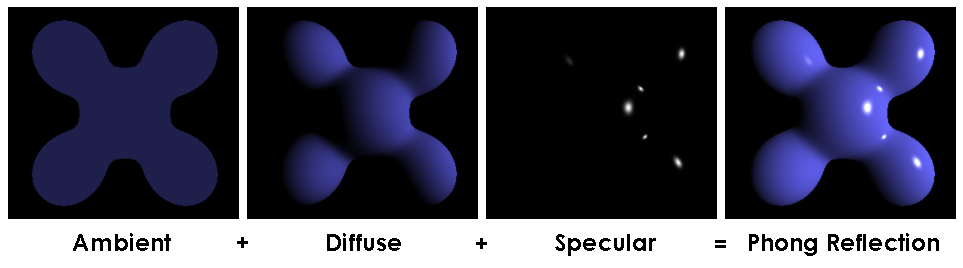
The Ambient lighting is just a constant number which just gives a small ‘glow’ overall equally. It’s literally ambient lighting from the surroundings.
Let’s create a variable called TotalBrightness in the intersection function, which is a percentage of brightness of each pixel (between 0.0 and 1.0), and let it originally be set to 0. Before returning back the color of the intersected pixel, we’ll multiply the pixel’s color with this TotalBrightness variable to get the final pixel color and brightness.
After everytime we modify the TotalBrightness value, we must make sure we clip it between 0.0 and 1.0, we don’t want colors which are > 255, nor do we want negative numbers.
If TotalBrightness is 0, then the pixel_color_with_brightness = actual_pixel_color * 0.0, which is color (0, 0, 0) = black
If TotalBrightness is 1, then the pixel_color_with_brightness = actual_pixel_color * 1.0, which is nothing but the actual pixel color itself!
To implement Ambient lighting, we’ll just set the default TotalBrightness to the Ambient Brightness term. In my project, I have a special class called Scene which holds the reference to all objects in the scene as a list, and it also has special information such as the background color, and ambient lighting of the entire scene.
The Ambient lighting is usually very low (in between 0.0 and 0.1, inclusive of both. If we set it to any higher value, we’ll lose our shading look, and we’ll go back to looking 2D)
The Diffuse lighting is what gives the object a 3D look, and the Specular gives an Illusion of reflections.
I didn’t build reflections as it is a bit more resource intensive in my implementation (as stated previously, my implementation definitely has some in-efficient math/algorithms involved, as I derived most of them myself).
Before we break down diffuse shading, let’s actually try and get the vector component for the main intersection point on the sphere.
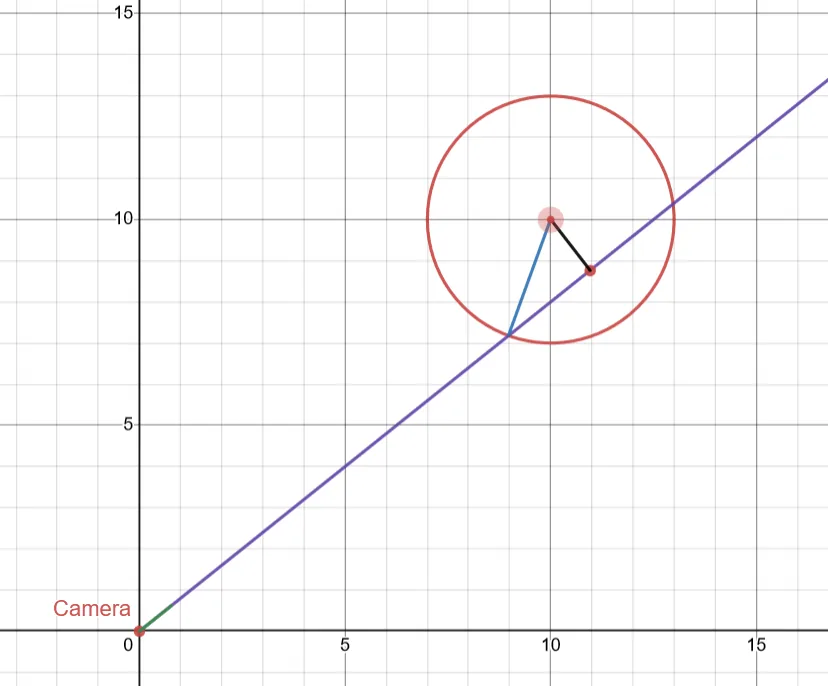
We can draw a line from the center of the sphere to the intersection, where the line meets the sphere.
Although, keep in mind, when doing this using actual math, there are 2 intersection points, but both of them are symmetric, so we can ‘ignore’ the one which is furthest away from the camera.
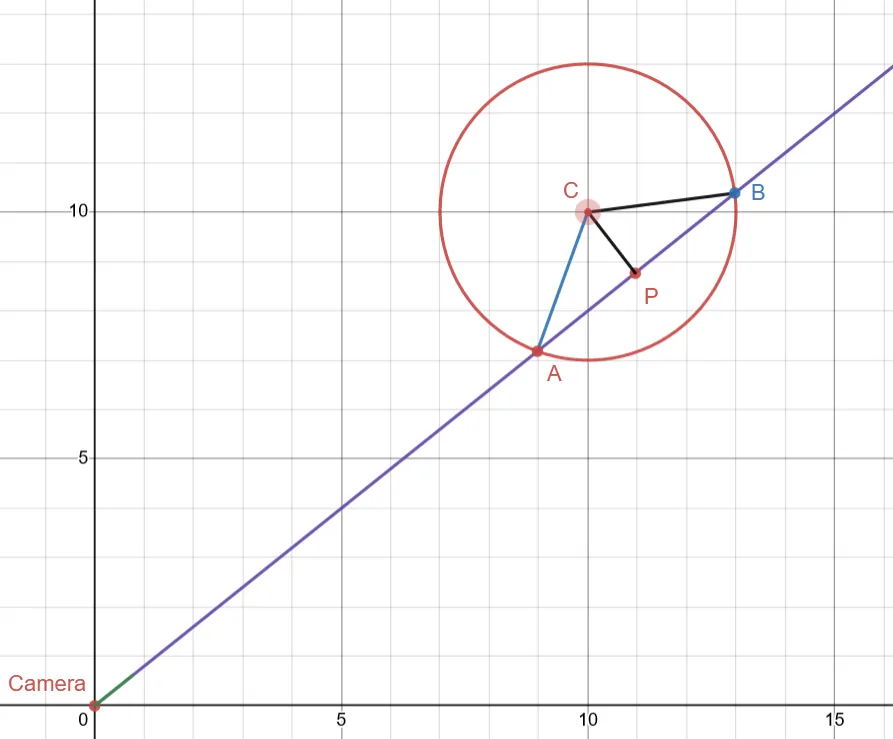
Using Pythagoras’s theorem, we can find the length of the purple line’s edge (As AP and PB are symmetrical, we’ll just find for the AP side), for the triangle APC, with P being $90^\circ$.
\[\begin{aligned} AP^2 + PC^2 &= AC^2 \text{(Pythagoras Theorem)}\\ AP^2 &= AC^2 - PC^2\\ AP &= \sqrt{AC^2 - PC^2} \end{aligned}\]We know, $AC$ is just the radius of the sphere, $PC$ is the distance to the point on the line, we found in the previous tutorial.
Using these, we can find the distance of $AP$. This however doesn’t give us anything in particular. What we can do is, get the direction vector of the camera vector (which is normalized, i.e has a magnitude of 1), and then multiply it with $AP$, to get a vector in the direction of $AP$(as shown in the figure), and as large as $AP$.
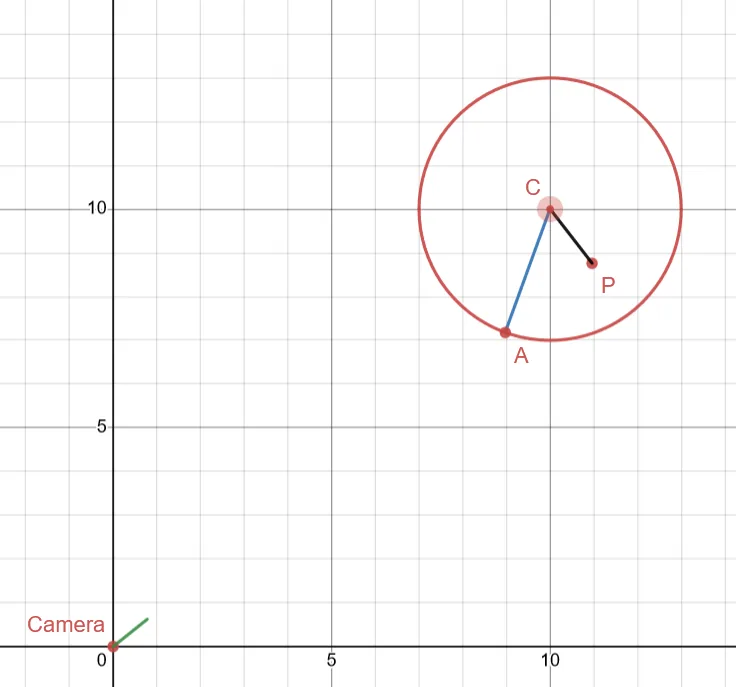
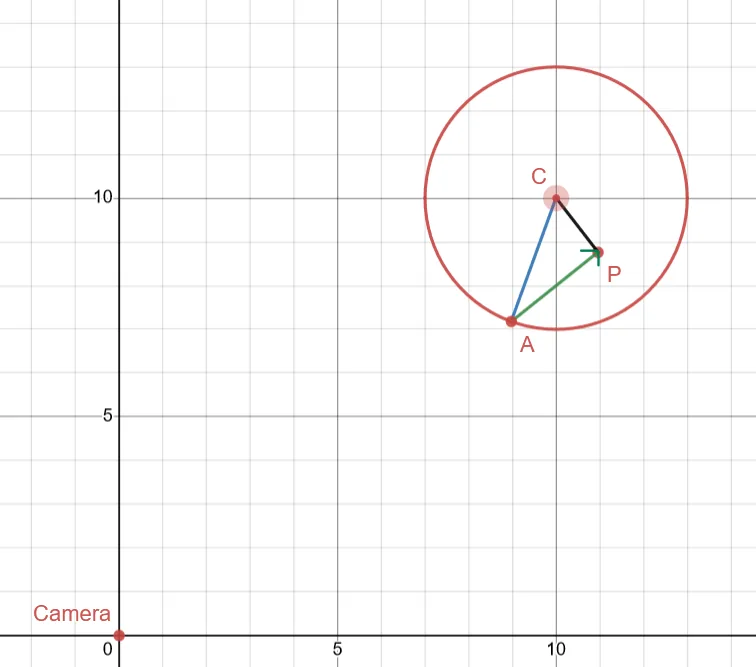
We know vectors don’t have a starting position, but in this relative scenario, we’ll be taking the camera point as the starting point.
To find $\text{Camera} \to A$ vector, all we have to do is, find the $\text{Camera} \to P$ on the coordinate board (which we already have previously in the intersection chapter), we can then subtract $AP$ from the said vector.
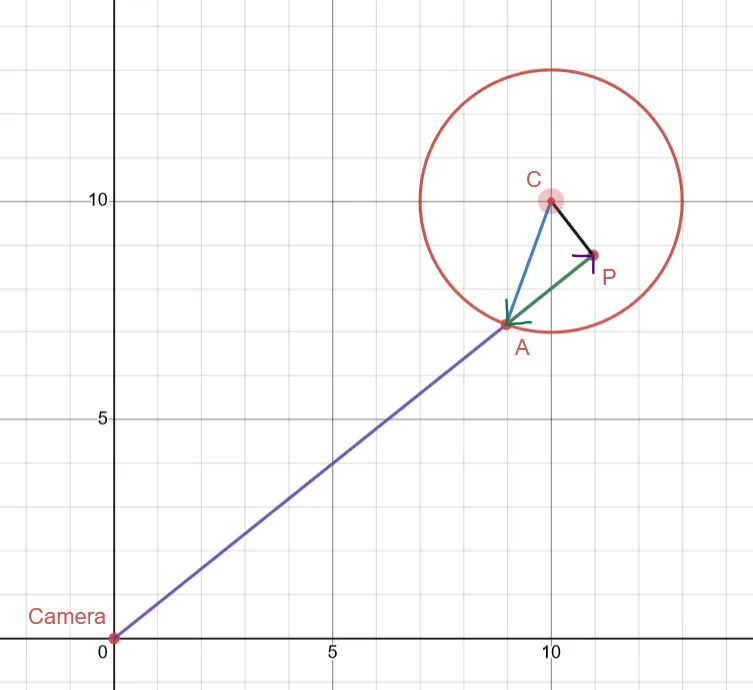
Pay attention to the color of the vectors (to differentiate between them) and their direction.
Therefore: Let $(text{Camera} \to P)$ vector be $C’P$ Let $(\text{Origin}(0, 0, 0) \to \text{Camera})$ vector be $C$
$C’A = C’P - AP$
If we had added $AP$ to $C’P$, we would have gotten the point which exists on the other side of the sphere, which we want to ignore.
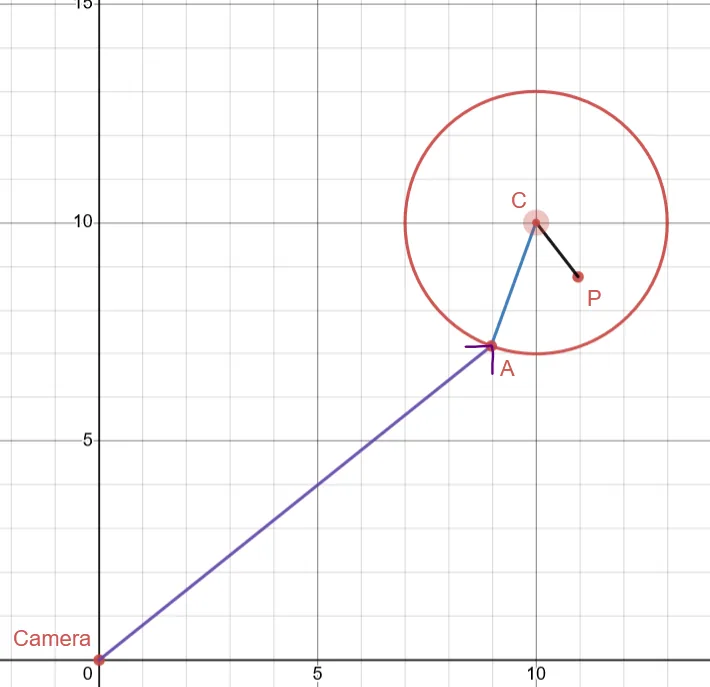
We have our $\text{Camera} \to \text{Intersection}$ vector finally!
Do not shift this to $(0, 0)$ just yet! We’ll be making use of the fact that this vector emerges from the camera, which helps a lot in shading!
We can now ignore point $P$, but do not get rid of vector $CA$ (Center to point A) just yet! That vector is called the normal vector defined at that point, as it is exactly $90^\circ$ to the surface of the sphere at that point. It basically tells what direction that intersection point on the sphere is pointing at. This also helps a lot in shading!
Before we go ahead, let’s define what a “Point Light” is.
class PointLighting : public Object3D {
public:
    double strength;
    // ...
}
We just have one field called strength, which is a number between 0 and 1. We want this field to be a percentage value, so we can multiply the brightness of a pixel by this percent value.
This Point Lighting also derives from “Object3D”, and hence holds values such as Position, and Normal. The normal vector for a point source light doesn’t make much sense like the normal vector for spheres, so we will just ignore it!
Let’s also draw a vector from the intersection point to a light source (Try it out on paper using vector-math!) Let’s take a closer look at the sphere, with only its normal vector, and the vector from its intersection point to a point source light.
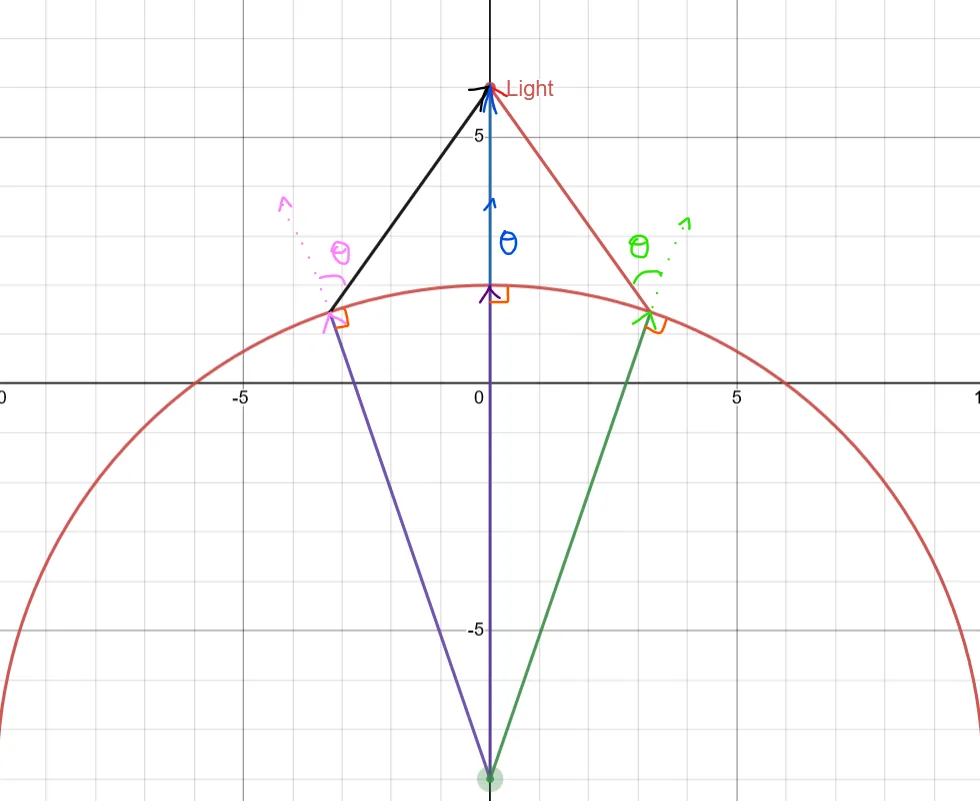
Here we have 3 intersection points just for an example. We need to try and figure out which points are colored brightly, and which points are a bit darker based on the given set of info.
Before we move on, let’s quickly implement shadows. When we find the direction of $(\text{intersection_point} \to \text{light})$, we can ‘summon’ another camera at that position, and run a ray interaction function towards the light. If the ray ‘hits’ any object, we can then conclude by not calculating the brightness factors.
We’ll still need ambient though, that should always be counted no matter what.
If there is an object, we can check the distance to the object, and then compare it to the distance to the point sourced light the camera/ray is pointed at, and then if the distance from the intersection point to the light source is lesser than the distance to the object, we can go ahead with the calculations. This simple logic gives us shadows, almost for free, with no additional calculations.
To calculate brightness (take a look at the previous diagram once more).
We can guess the point which the Blue Normal line (The middle normal line from the center of the sphere) touches should be lit the most bright as it is directly below the light source/That part of the sphere is directly facing the light source.
We can see the angle between the normal and the vector point to light is somehow related to the brightness amount. With an angle of 0°, we see the brightest amount, and we can extrapolate, and imagine if the surface of the sphere is 90°+, the brightness should go to just 0.
This given set of logical info resembles a cos graph. (degrees in X axis, brightness value in Y axis)
At $0^\circ$, we have a factor of 1, with $90^\circ+$, we have a factor of < 0. We can just clamp this factor to just 0, so it doesn’t reach the negative scale. We can also ignore $270^\circ$ to $360^\circ$, as that is just angle $0^\circ$ to $-90^\circ$, i.e it’s the angle the other way around from the reference point, which is totally fine!
To find $\cos(\theta)$ we first need to find the angle between the normal and the (intersection to light) vector. Instead of doing all those, we know a vector function which also implicitly works around the $\cos(\theta)$ of both those vectors.
We can now use dot product!
Dot product is defined in 2 ways:
- $(x, y, z) \cdot (i, j, k) = x \times i + y \times j + z \times k$
- $\lvert A \rvert \lvert B \rvert \cos(\theta)$ {where $\theta$ is the angle between the 2 vectors}
The 2nd definition doesn’t exactly give $\cos(\theta)$, it gives $\cos(\theta) \times \lvert A \rvert \times \lvert B \rvert$.
To ignore the other components/magnitudes of the vector, we can just turn them to ‘1’ by normalizing both the vectors before calculating the dot product.
We can then calculate the dot product using the 1st definition, and Voila! We now have $\cos(\theta)$ of both the vectors, we are left with a “diffuse brightness” factor.
We can now multiply this brightness factor to the strength of the light, and store it in a TotalDiffuseBrightness variable.
All we need to do is, do this for all point lightings that exist in the scene, and keep adding up to the TotalDiffuseBrightness variable until it reaches a max of value “1”. We don’t want any ‘factor’/’percentage’ to be greater than 1.
Once we have all of this, we can then add the TotalDiffuseBrightness to the TotalBrightness, which includes the ambient lighting factor as well. Remember to clamp it between 0.0 and 1.0!
Trying to render this, we end up with something like this.
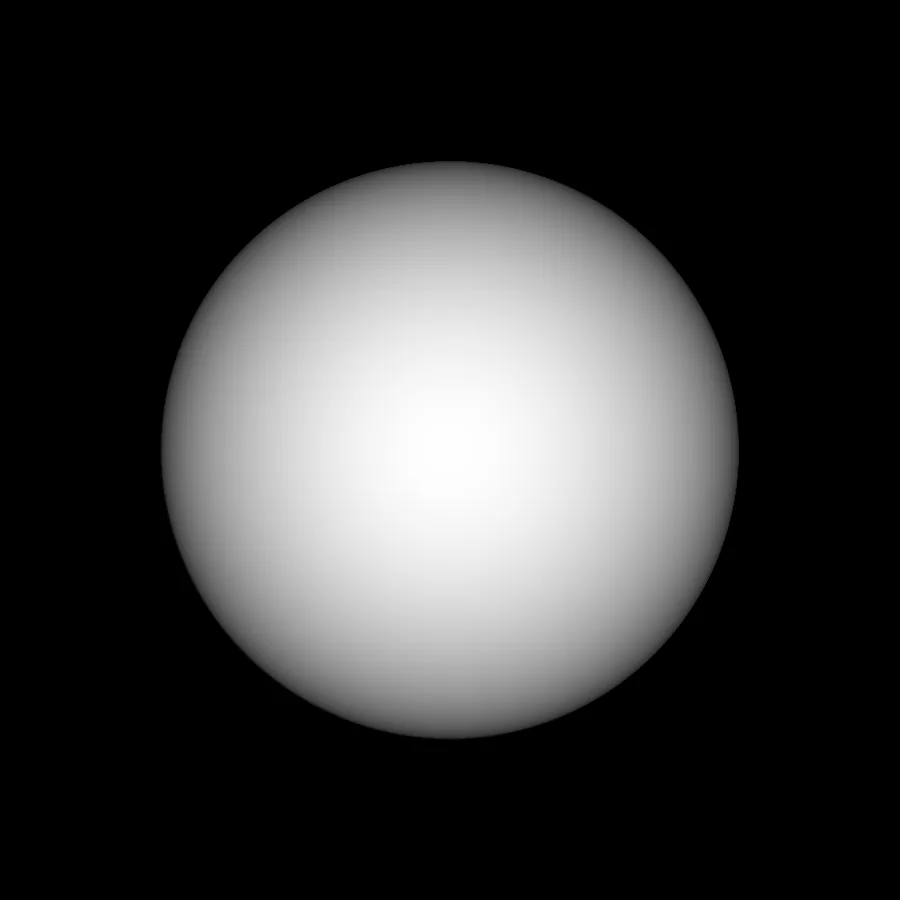
We end up with a 3D looking sphere!! We can move around the light’s 3D position, and see how it changes the final render.
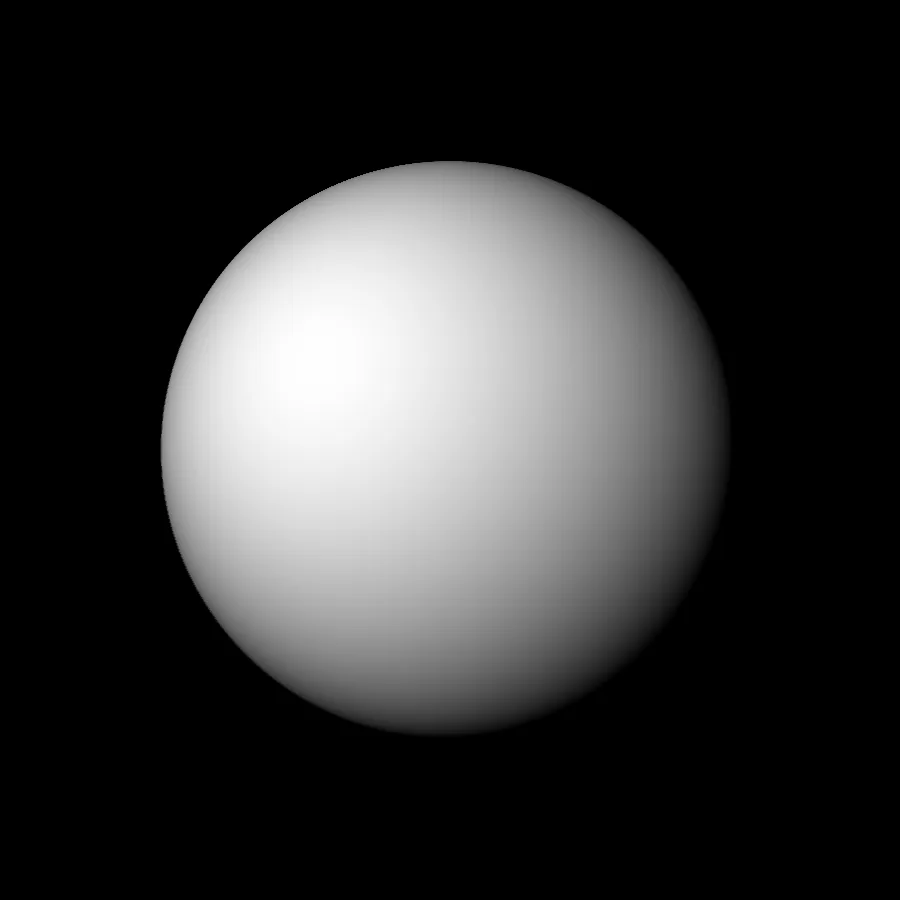
Is this the end? Of Course no! We have a lot more to implement! We’ve done most of the heavy lifting. We just have to tweak it to implement certain other details.
Reminder to organize and rearrange your code from time to time after you make edits. Each edit might just make your code worse unless you intervene every now and then to clean up your mess.
Alright, Diffuse shading at most gives us a very matte look. To get better shading, we’ll need to add specular shading as well.
Specular shading works somewhat similar to diffuse shading, so we can run those calculations right next to diffuse shading code, for each light source from each pixel.
This kind of shading however calculates the reflected ray direction, and takes $\cos(\theta)$ of the angle between this reflected ray and the direction from the intersection point to the camera. This basically allows us to make the pixel look brighter if the reflection ray is directly pointed towards the camera, else we’ll just scale it down.
We can calculate the reflected ray using this algorithm (again, try to visualize it. Draw the vector diagrams on a paper and solve it by hand to really understand what is going on)
Vector reflected_ray = (res.normal *
    (2*res.normal.dot(light_direction))
) - light_direction;
Vector view_vec = (Vector)ray.origin - res.intersection_point;
view_vec is the vector from the intersection_point to the camera.
- Case 1, The reflected ray is directly pointed at the camera:
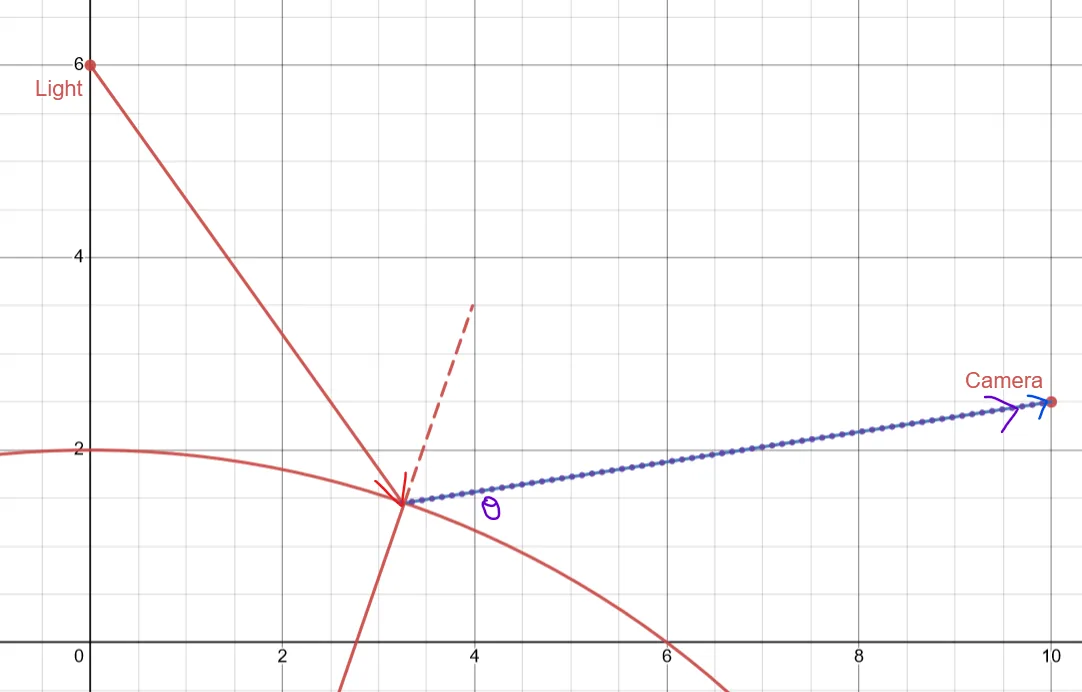
The $\theta$ is just 0 here, hence taking a dot product of those 2 vectors (normalized) gives us $\cos(\theta)$ will inturn just gives us a specular factor of 1.0
- Case 2, The reflected ray is pointed a bit away from the camera:
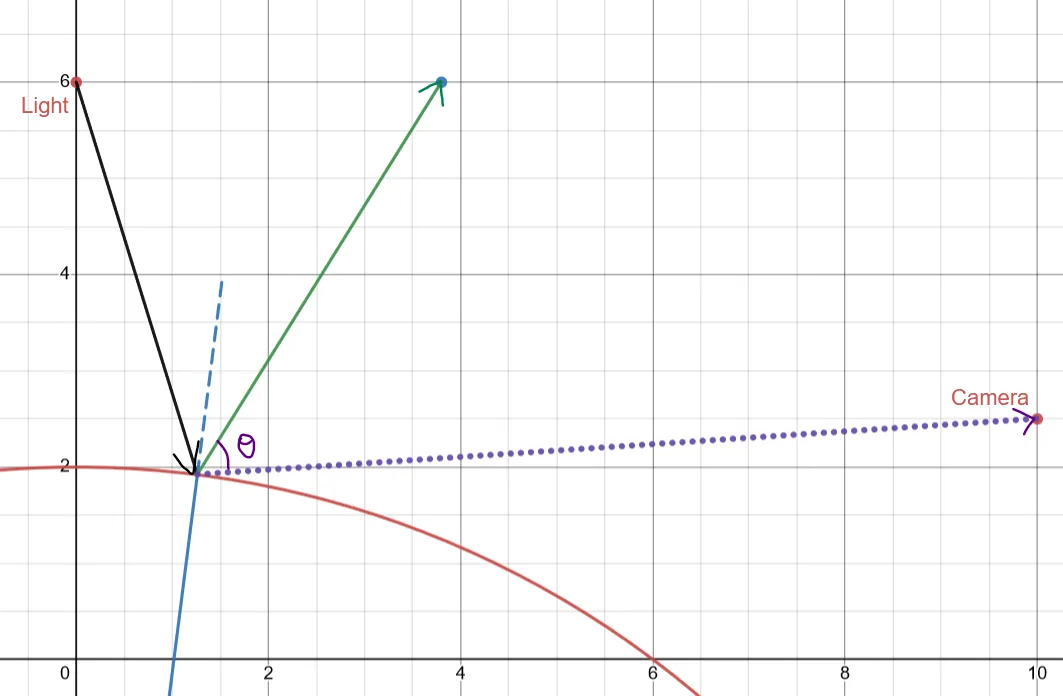
The $\theta$ is > 0 here, hence taking a dot product of those 2 vectors (normalized) gives us $\cos(\theta)$ will inturn just gives us a specular factor of < 1.0
Before adding this factor to TotalBrightness, let’s scale Diffuse down a little bit, we don’t want to overshoot TotalBrightness of 1.
We have now have our Total brightness which looks like this (Scaling down Diffuse to 80%, and Specular to 20%, as Ambient is very small, we can ignore it, as, if the total value does go above 1, our clamp function will take care of it):
TotalBrightness = Clamp(Ambient + (Diffuse * 0.8) + (Specular * 0.2))
Let’s render, and see our results:
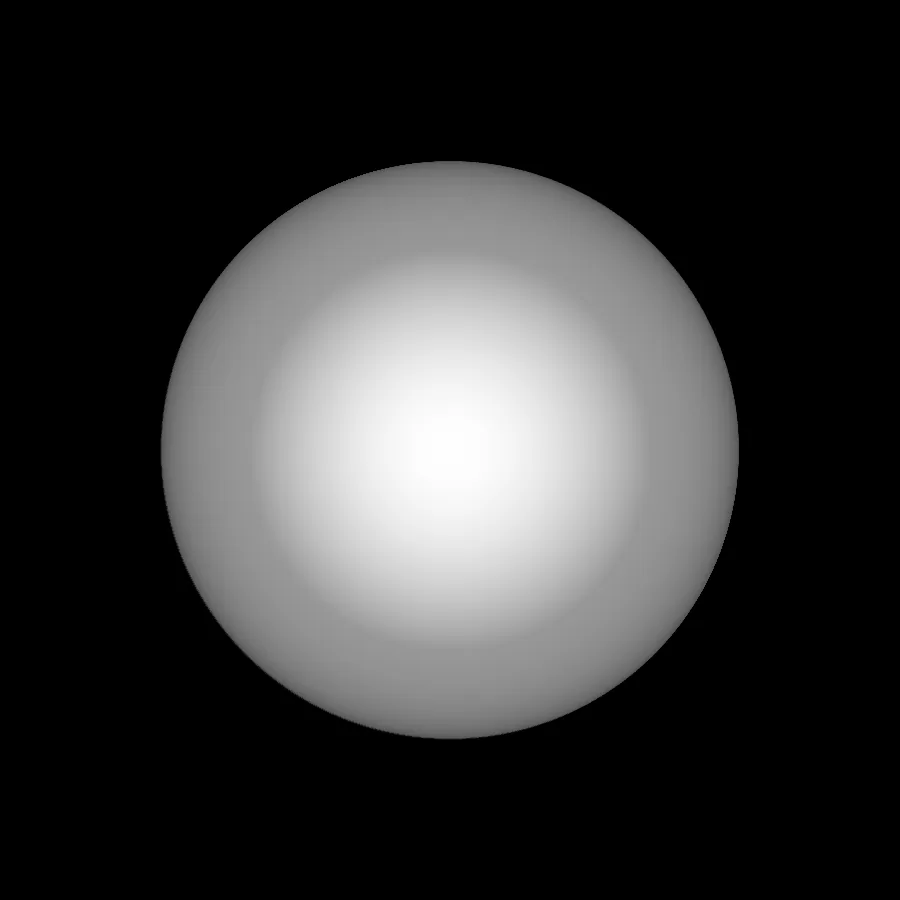
I notice a couple of problems here. We somehow lose our dark borders at the edges. Let’s retry rending, but this time let’s move the light to one side, so we can see the darker areas clearly.
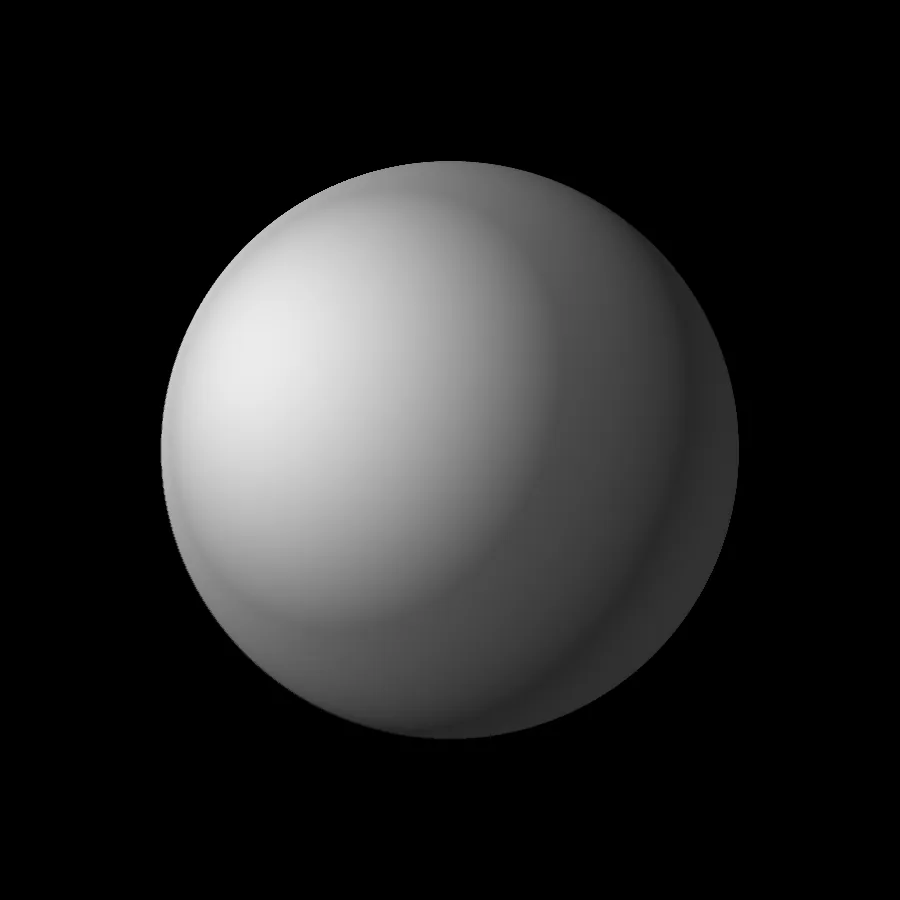
We have definitely lost the “matte” -ish look, but we have also lost the dark edges. To get that back, we can just clamp the specular factor to between 0 and 1, as, if we recall, the dot product in the specular component can be negative.
TotalBrightness = Clamp(Ambient + (Diffuse * 0.8) + (Clamp(Specular) * 0.2 * Diffuse))
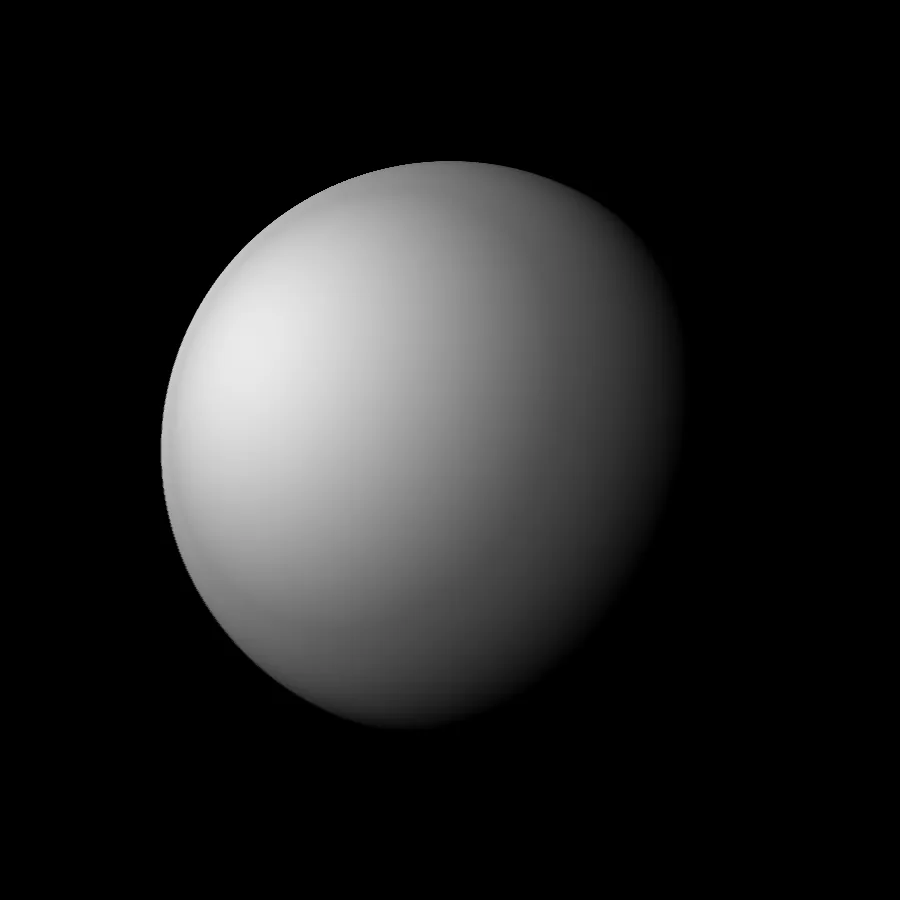
What if we could control how much “light the sphere reflected”, i.e how reflective that sphere is? If something is more reflective, then we see a stronger in brightness/smaller in size specular lighting. To imitate this, we can use the power function.
This is how your normal $y=x$ graph looks like. This is what happens if we take x to the power of some number. We’ll be ignoring every point except the points inside $0 < x < 1$, and $0 < y < 1$.
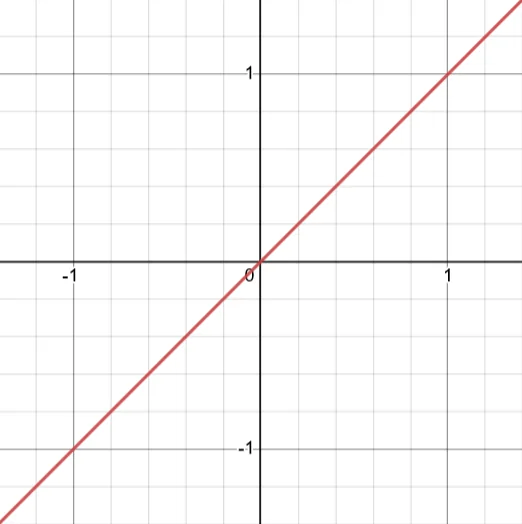
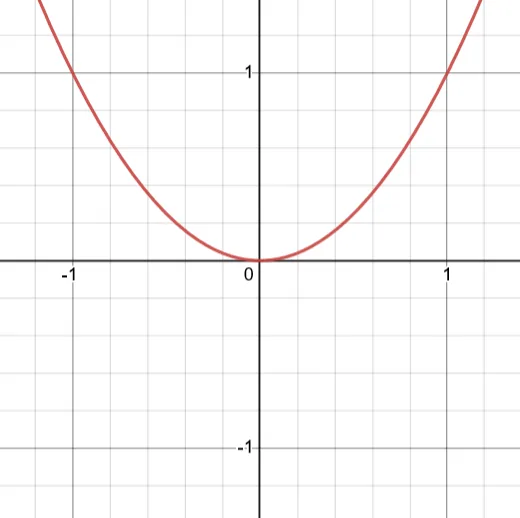
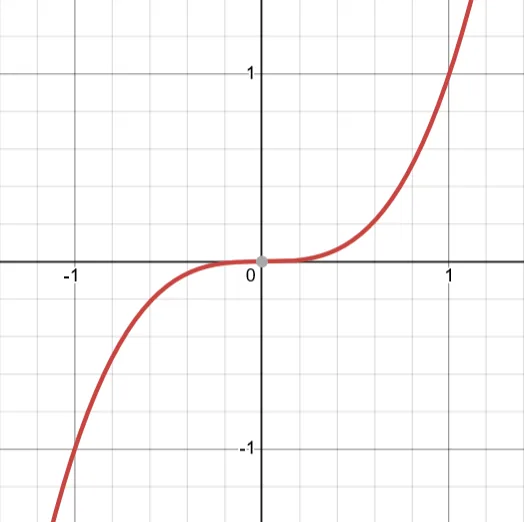
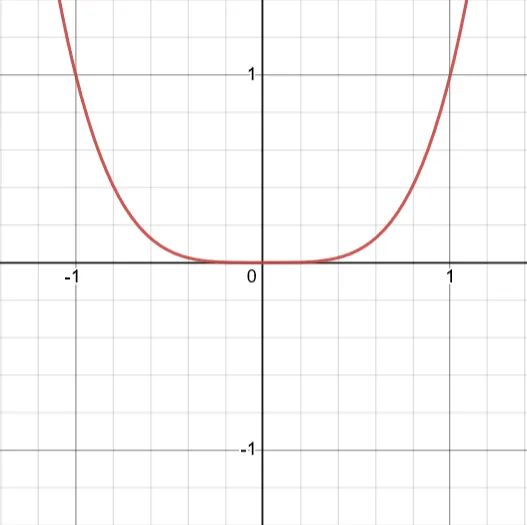
As we can see, the line looks more squished downwards (points taken between $0<x<1$, and $0<y<1$) when we take the input to a stronger power.
We want to tighten the specular “reflection” to a smaller point as the distance increases from the center of the reflection point.
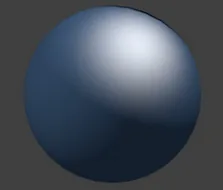
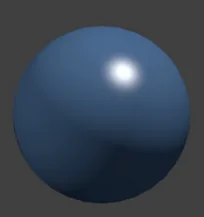
We’ll apply similar powers to a $\cos(\theta)$ function, and let’s see what results we end up with!
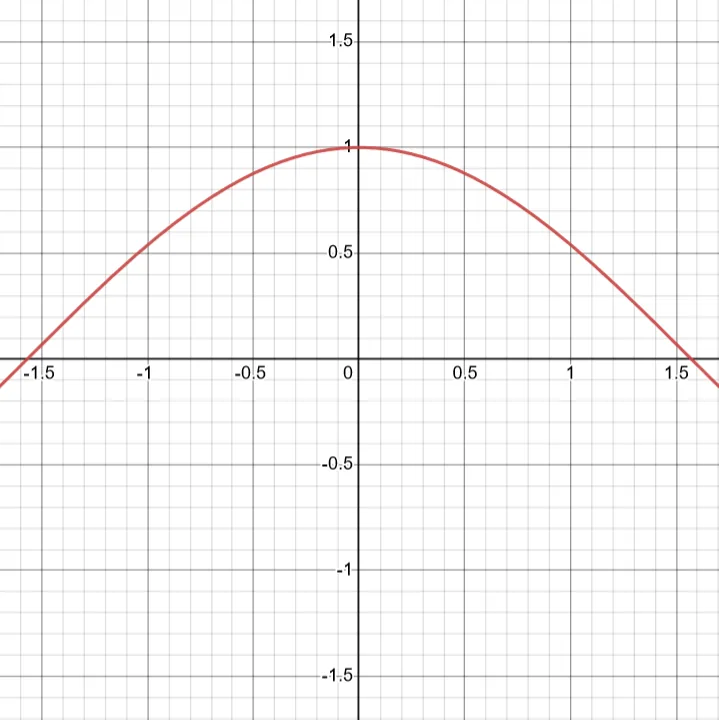
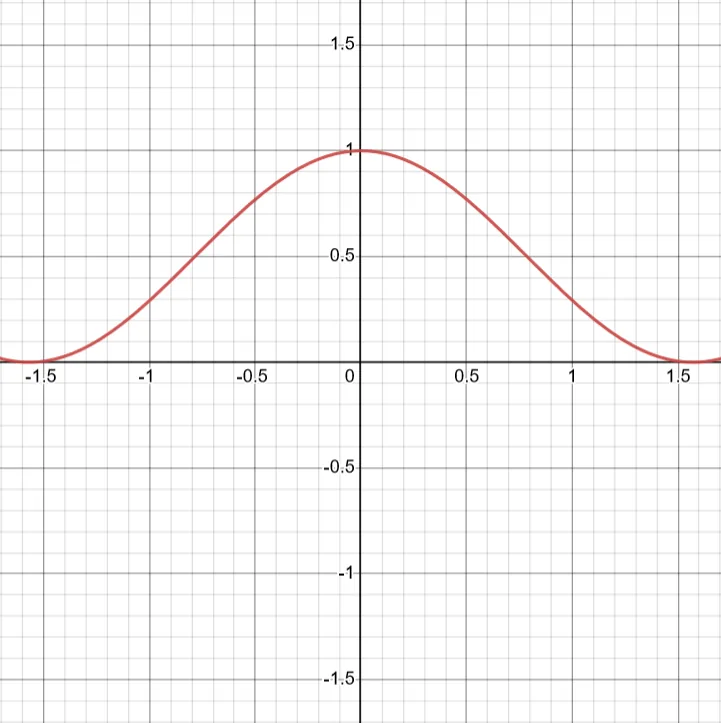
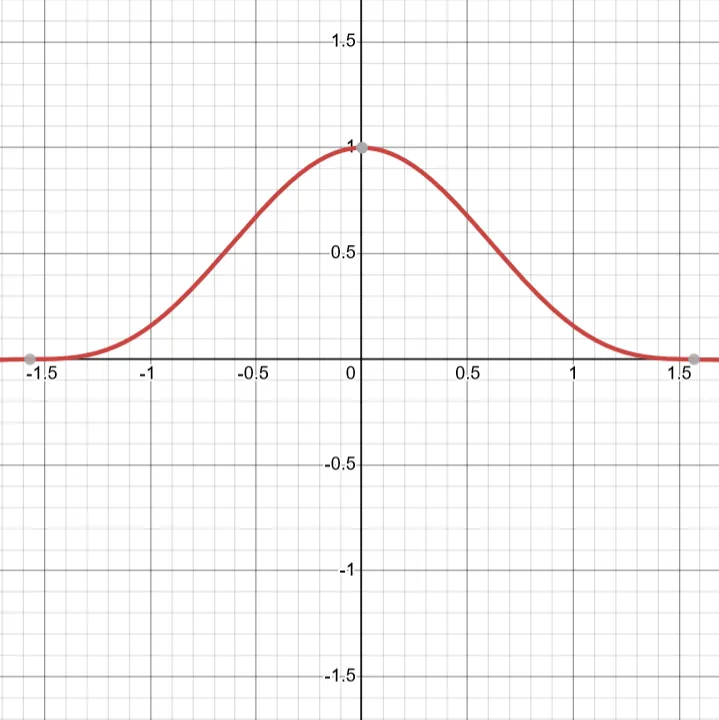
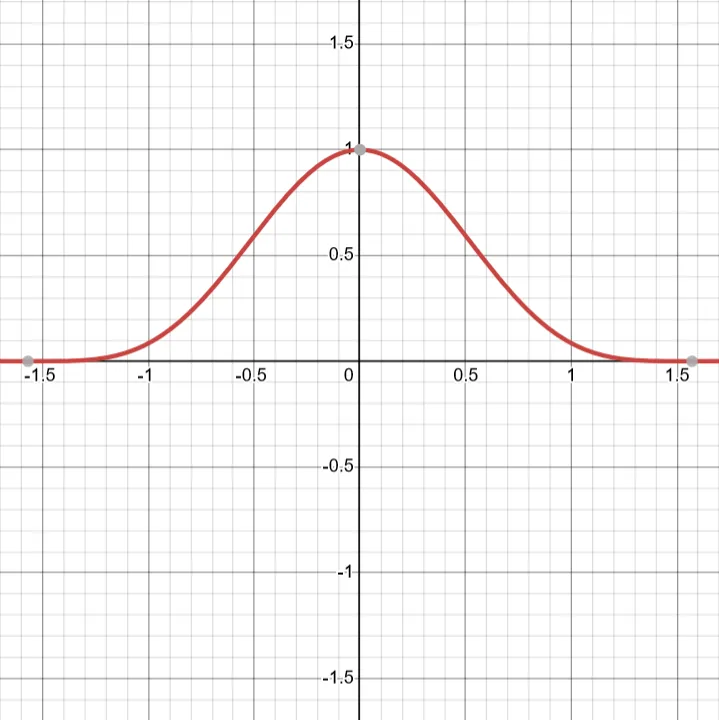
We can see the cos graph being squished. For our project, this isn’t enough! We’ll need to take cos to the power of (powers of 2) to get a good looking shade. We can take power numbers like (2, 8, 16, 32, 128, 256). We can call this number ‘roughness’ (although I’m not sure if this is what the mainstream industry calls ‘roughness’. I’m just calling it roughness for the sake of my project) I’ve set 32 as the maximum roughness amount in my project. I use the term “rough” and “specular” almost interchangeably in this document, even if they might have very different real life meanings attached to them.
To structure this in code, we can expose the roughness amount to the user, by making it a member of the sphere. When the user at the frontend sets up all the components, scene, etc, they can configure the color and the roughness of the sphere.
The Total Brightness factor looks something like this now:
TotalBrightness = Clamp(Ambient + (Diffuse * 0.8) + (Clamp(Specular)^(roughness) * 0.2 * Diffuse))
We can simplify it using more than one line.
SpecularFactor = Clamp(Specular)^roughness
TotalBrightness = Clamp(Ambient + (Diffuse * 0.8) + (SpecularFactor * 0.2 * Diffuse))
Remember, Diffuse and Specular is first found by sending out rays to each light source which exists in the scene, and checking if it can reach the light, then calculating the brightness amount provided by that light source. We add all the brightness factors by all light sources, and we end up with Diffuse and Specular variables. This formula above helps us combine these brightness values together, while looping through all the given light sources.
This is how it looks when we render now!
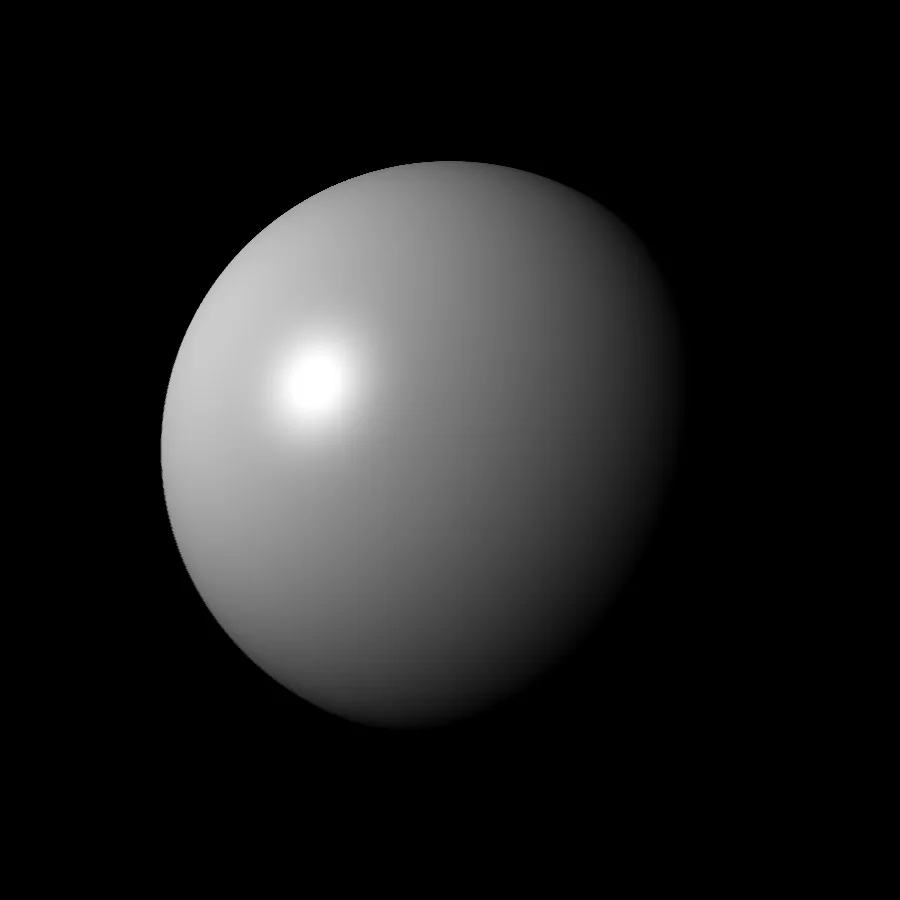
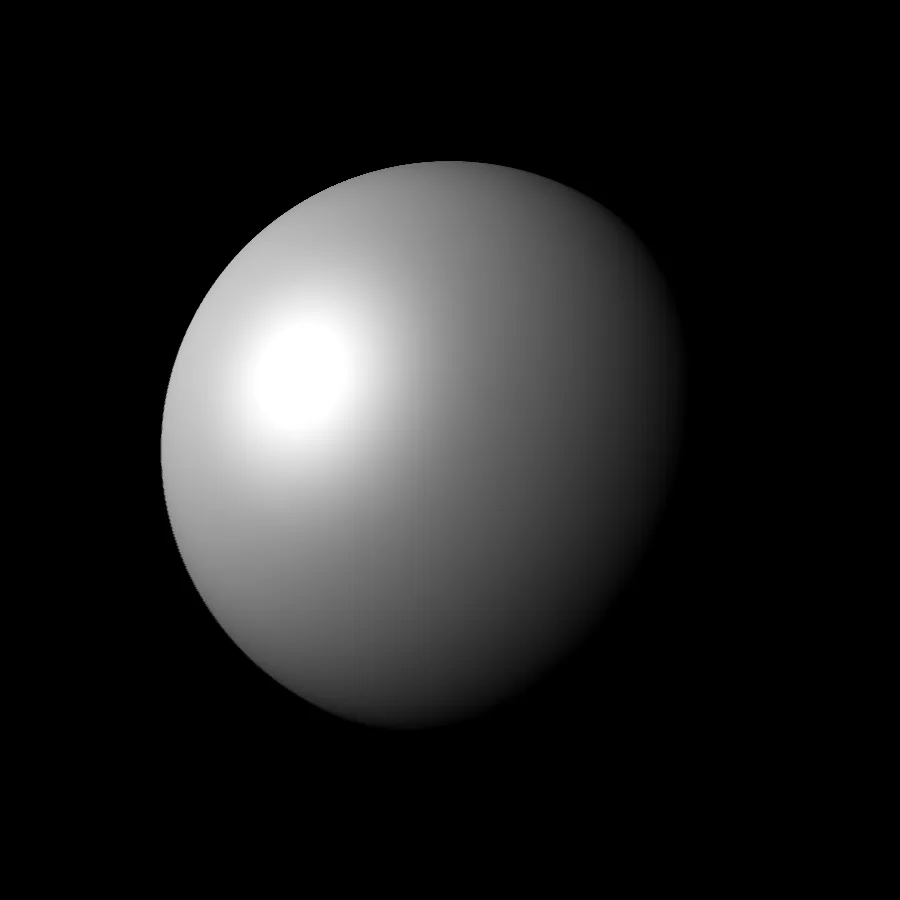
Also feel free to tweak certain numbers, edit the equations, multiplying/dividing some factor to ur implementation if you think you need it!
Texturing
Before we dive into texturing a sphere, Let’s talk about UVs. No, I’m not talking about the spectrum of light after the visible range, I’m talking about converting a set of points (Usually in 3D) from one reference frame to another (usually in 2D).
The 3D axes are named X, Y and Z, and therefore when converted into a 2D representation, the axes are named U and V, and hence we end up with a term called UV mapping.
Here are some examples and animations to make sense of UV mapping complex shapes.


You can think of it as a way to unfold an origami model into a sheet of paper. Then you can easily color the faces along the folds and creases, and then re-fold the paper back to a model to get a fully colored origami model.
Instead of coloring faces(how normal games and renderers do), as we are working with Ray-Tracing, we are working with points/pixels on screen directly and not faces. We’ll be coloring multiple points along the given face.
Here’s an animation clip from the video by Sebastian Lague (An Amazing youtuber one must checkout) which does the same thing as mentioned above.

As you can see from the animation, we first unfold a sphere into multiple points onto a rectangle, where we can then use an image input to map it along the unfolded points, then we can fold back the points onto our sphere.
We have to now achieve this mathematically.
The UV image is the rectangular image you see in the animation, it’s the image we’ll be mapping over the sphere. The main thing to remember with the UV representation is, both its height and width is a number between 0 and 1. How can an image have a width of 0.5? You might ask. Well, this is where we can multiply the said width factor (= 0.5), with the width of the input image (let’s say = 1920px), to get the final width of 960px, which is exactly in the middle of our input image. We can then query this pixel from our input image, and then pass it on as the color of the point.
From now onwards, as rectangles have weird dimensions, I’ll just be using squares with equal dimensions in my project, as they are simple to work with, and they give little to none noise towards the end.
For this to work, we must squash our input rectangle into a square:
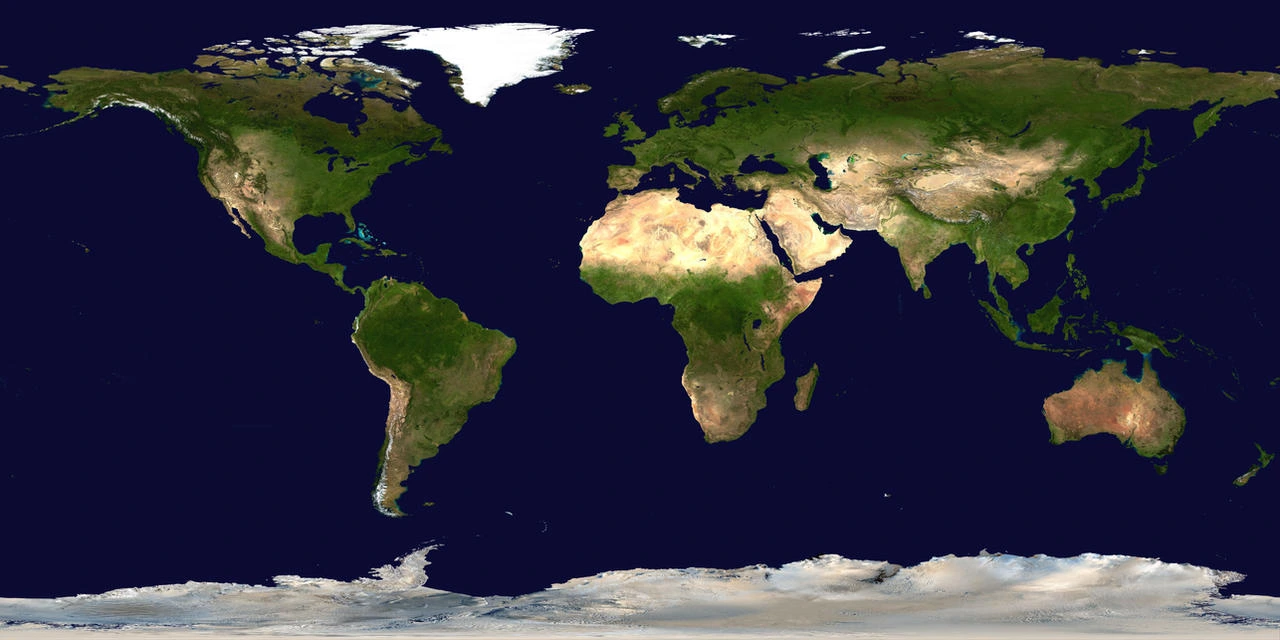
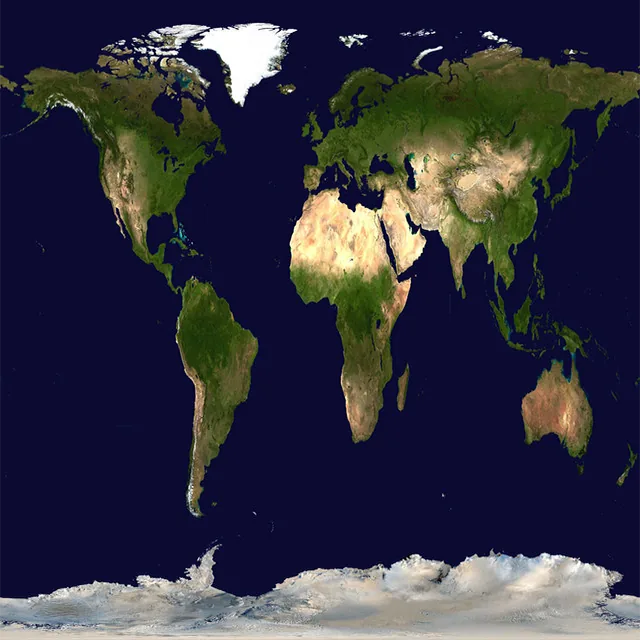
Let’s try to understand how to uncurl a sphere into a square.
In a UV plane, each point has 2 properties, namely the height and width which is unique for that point, and also defines its location on the UV grid. We need to find 2 properties for points on a sphere which denote its location from a reference point. One way we can do that is using angles from the “front of the sphere”.
Think of it this way. Let’s define the front of the sphere to be some vector pointing from the center to a certain point on the sphere. You will need to visualize your own “front” for this sphere. I went ahead such that the Normal member of Object3D defines the front of the sphere at vector position $(0, 1, 0)$, similar to how the camera calls $(0, 1, 0)$ “front” in my system.

Now we can project the given point on our sphere (Point B in the visualization) onto a horizontal plane which goes through the center of the sphere and the normal/front of the sphere (Point D). We can now calculate the angle between this new projected vector and our normal.

We do the same, but now for a vertical plane instead.
We know, these angles go from $0^\circ$ to $360^\circ$(that’s how angles work), we know UV coordinates run from 0 to 1. All we need to do is, map the angles to the UV coordinates.
WAIT! Before we do that, we want a few things first. We want the normal to point at the middle of the UV texture, and not the start $(0, 0)$ of it. I want it to point to $(0.5, 0.5)$ on the UV texture. To do that, I’ll need to shift over the range of the angles from $0^\circ \to 360^\circ$($0$ to $2\pi$ in reality/radians), to something like $-180^\circ \to 180^\circ$($-\pi \to \pi$), where 0 (which is in the middle) can map over to a value like 0.5.
This is all about math functional range manipulation, which is not that hard. If we know what our input is, all we need to do is, multiply/divide/add/subtract a few constants in a particular order, to get a different range towards the end.
Before I continue, I want to give a disclaimer. This is absolutely how one would not calculate UV’s in a real engine. This is just one way I figured out would work for my use case. This only has one degree of rotation, that is over the horizontal plane. I can rotate my normal around the vector $(0, 0, 1)$, on my horizontal plane, but when I try to tilt the normal up or down, the UV mapping breaks apart. To make something that works, most game engines make use of Quaternions, which are 4 Dimensional Unit Spheres to keep track of rotation, which is way too complex for my little brain at this point. Quaternions are really interesting, and I would honestly suggest 3Blue1Brown’s video on the topic. (Part 1) (Part 2)
The interesting part now, is to get the angle from the projected vector to the sphere object’s normal vector.
When the ray intersects the object, we find the normal vector from the center of the sphere. This ‘normal’ vector is normalized, and can be sent to a function to figure out the angle between the point on the sphere to the sphere’s “front”/Object3D.normal vector.
To get the angle along the horizontal plane, all we need to do is a simple $\tan^{-1}(y/x)$.
Cpp/C’s math library has a function called atan2(y, x) which does the same as inverse $\tan$, but it’s range is $[-\pi \to +\pi]$, unlike $\tan^{-1}(y/x)$, whose range is $[-\frac{\pi}{2} \to +\frac{\pi}{2}]$. atan2 internally figures out which quadrant the vector lies in, and factors it in, and gives us a wider and more accurate range to work with. It also helps when x is 0, $\tan^{-1}(y/x)$, mathematically should give 2, but as you might have noticed, when x turns 0, the computer just throws a Division By Zero error, even before you send it through the $\tan^{-1}$ function. atan2(y, x) function has the edge cases built in.
Keep in mind, when Y is imagined to be up, and X is imagined to be right, as on a 2D grid, the angle between the vector can be found out using this method of atan2(y, x).
To get the angle along the vertical plane, we need to ‘squish’ the 3 dimensions into just 2 dimensions, as we are now dealing with not just X, Y but also the Z (up) coordinates. We can ‘squish’ the X and Y into one plane, and then atan2 similarly with Z, to get our angle. I will explain how this works more later onwards. This ‘squishing’ on dimensions onto just one dimension can be achieved using taking square, adding’ em up, and taking a square-root of the entire term. I’m basically just taking the magnitude, but one can image it to be ‘squishing’ X and Y dimensions into just a single vertical plane.
In this use case, we don’t even need to take square roots as these points are from our normal vector, and hence the magnitude will just be one even if we square it!
Therefore, the final angle is now found using atan2(z, x2+y2). Here, in our reference world, we imagine ‘z’ to be up, and the right side is the ‘squished’/’projected’ vector, and hence the vertical angle is found.
As stated before, we are only squishing for one angle, we can’t really do the same for the other angle. I believe this inconsistency is why I’m locked to just one degree of rotation.
Why can’t we squish while working from the other angle? Well, let’s take a look at our projection image. This is called an equirectangular projection.
I want you to imagine that you are looking at a 3D spherical model of the earth from the lat-long $0^\circ$, $0^\circ$. As you move right on the map, your angle on the imaginary globe starts increasing! Once you reach the edge on the map, you reach lat-long $0^\circ$, $180^\circ$, and you taper back to the other side of the map (left side), and you continue till you reach the center once again!
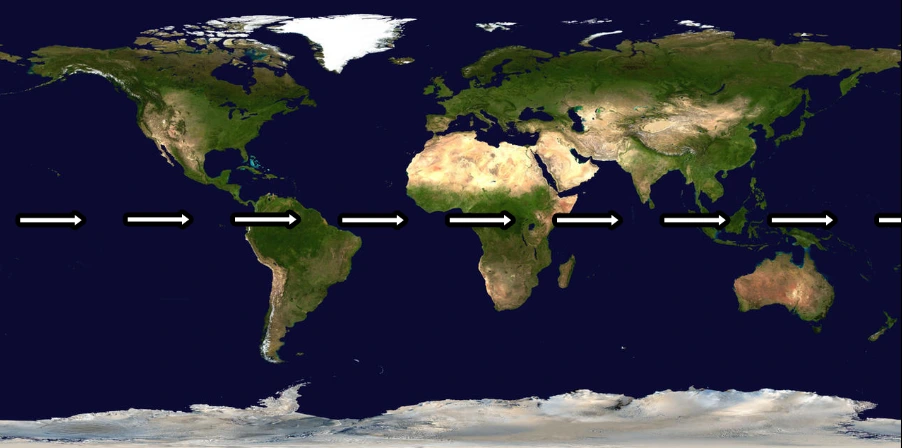
Looking at our 3D earth model from a top-down view (from north pole), can help us visualize this relation from angle to UV. Assuming Greenwich to be $0^\circ$
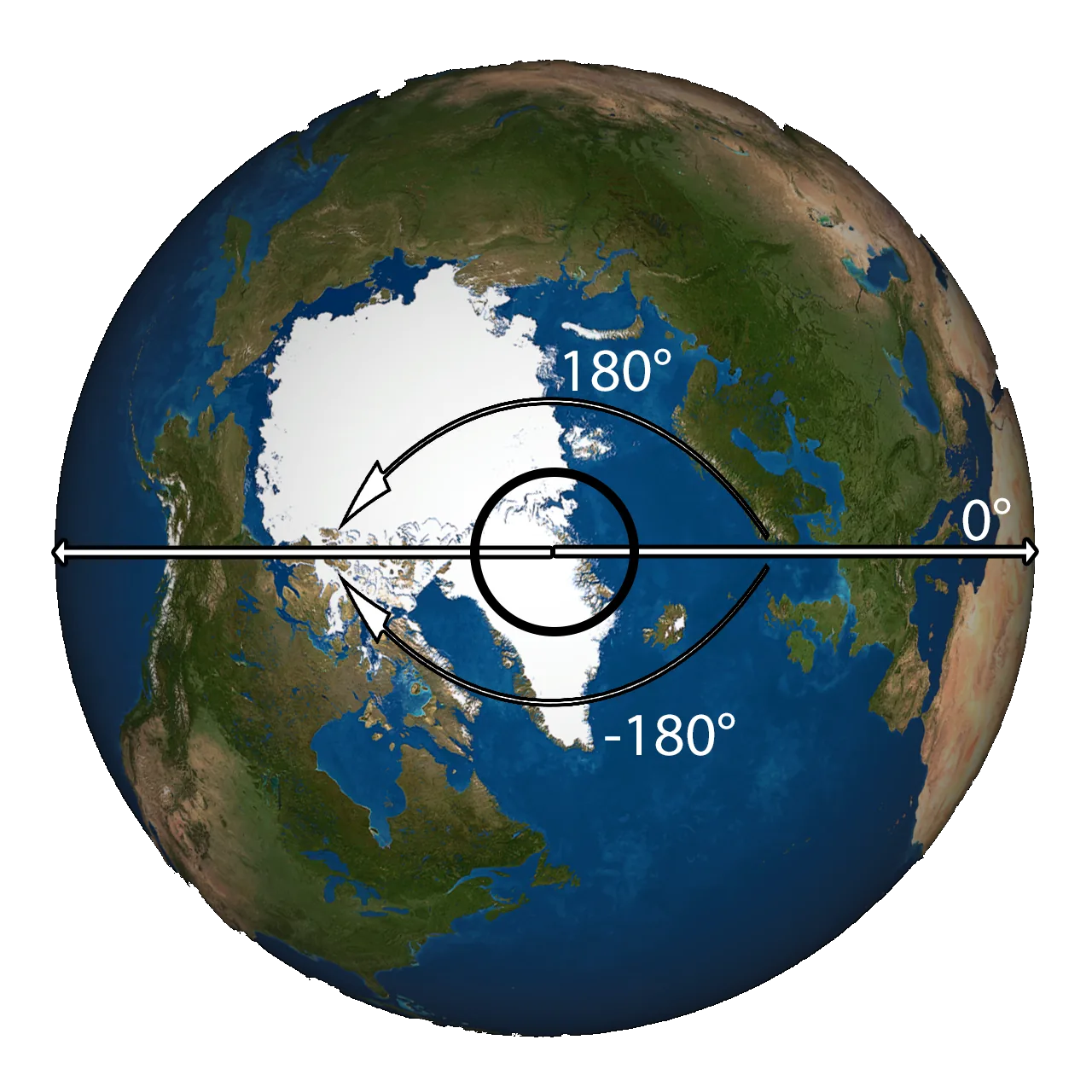
As the angle increases till $180^\circ$(vector sweeping across asia!) we can move to the right of the UV image(to cover Asia on the UV image). We can go back to $0^\circ$, and imagine as the angle decreases till $-180^\circ$ (vector sweeping across the Americas), we can move to the left of the UV image (to cover America on the UV image).
We know atan2 in C gives us a range of $-180^\circ \to 180^\circ$. So we can move on with this.
The mappings can be summarized as the following: Remember, the sign convention doesn’t really matter here, we can adjust them to our liking while working on the code. In this particular example, i’ve taken the vector lying on asia (as seen in the previous image), to be $+90^\circ$, and the other side of the globe to be $-90^\circ$.
| Degree/Radians | Point where the vector is pointing on earth |
|---|---|
| $0^\circ$ / $0$ | Greenwich |
| $+90^\circ$ / $+\frac{\pi}{2}$ | Russia |
| $\pm180^\circ$ / $\pm\pi$ | International Date Line |
| $-90^\circ$ / $-\frac{\pi}{2}$ | East Coast of US |
| $360^\circ$ / $2\pi$ | Same as $0^\circ$ / $0$ |
Now that the horizontal angle is covered, can we do the same for the vertical angle? Take a look at the equirectangular image, and think for a while!
I ask you to reimagine looking at the globe from lat-long 0, 0; Now start moving north! You can imagine going through Europe, North pole, International Date Line, Pacific Ocean, South Pole, South African countries, and finally reaching lat-long 0, 0.
Plotting this same route on an equirectangular map, gives us this weird looking route!
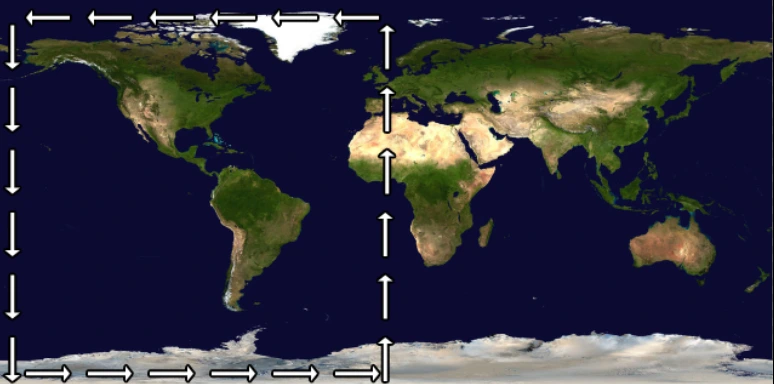
This is a property of the equirectangular projection. This is why as you move North or South on the map, the area of the countries gets stretched even more!
The mapping for this one would be a little bit hard to imagine. Here’s an image of a globe (side view)
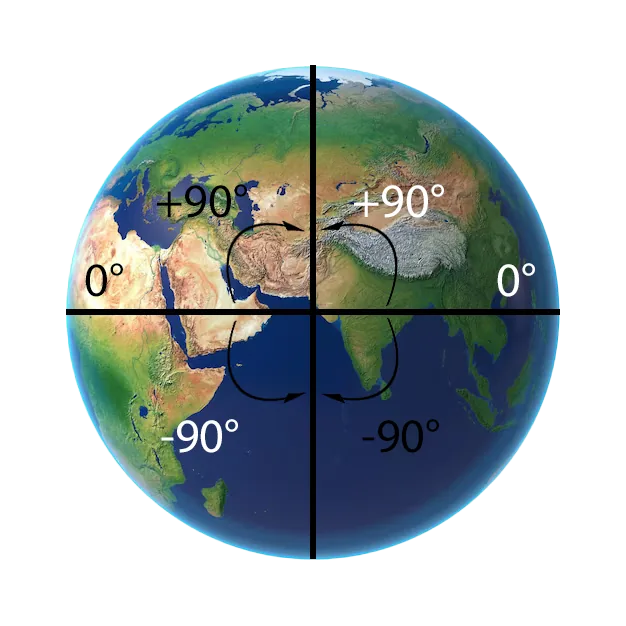
As I turn upwards, I want to go towards $90^\circ$(i.e top of the UV image), and then (move aside to the left side of the UV). Then I want to move down the image again, back to 0 lat. $(+90^\circ \to 0^\circ)$. Then moving from $0^\circ \to -90^\circ$, moves directly downwards on the image, i.e the southpole. Then to move back to the center 0, 0, we move from $-90^\circ to 0^\circ$! The mappings can be imagined as follows:
| Degree/Radians | Point where the vector is pointing on earth |
|---|---|
| $0^\circ$ / $0$ | Greenwich |
| $+90^\circ$ / $+\frac{\pi}{2}$ | North Pole |
| $\pm180^\circ$ / $\pm\pi$ | Doesn’t exist, as we only increase to $90^\circ$, and go back to $0^\circ$ |
| $-90^\circ$ / $-\frac{\pi}{2}$ | South Pole |
| $360^\circ$ / $2\pi$ | Same as $0^\circ$ / $0$ |
We can achieve both squishing of the dimensions as mentioned earlier, and the mirroring of the vertical (left/right) side on the other side by just squaring and adding up the normal’s x and y value, and taking inverse $\tan$ of z divided by the squared added term gives us our formula!
atan2(z, (x^2 + y^2)) is our formula! We don’t need to take the square root of the 2nd argument as the vector’s magnitude is still 1.
Talking about square roots, here’s a fun fact about square root and the game development industry~ Division by square root is something that is very common in video games. We usually do that while normalizing vectors. Even if computers are really fast at solving math problems like addition, subtraction, etc, square roots are a bit hard to calculate, and on earlier versions it used to take ages to calculate a square root of a number. Similar to that, even division takes a bit of time to calculate unlike multiplication, etc.
To figure out a solution to the inverse square root operation, a game developer who worked for Quake III came up with a genius solution which included very low level manipulation of bits in such a way to get a very good approximation of an inverse square operation, really quick! The game industry at the time suddenly boomed up thanks to them!
Do check out that case study on youtube!
Nowadays, your computers and your compiler optimize each line, and computers are generally faster, so one doesn’t really require this algorithm! Our computers can now perform calculations faster than this algorithm. This case study mainly highlights the fact that, developers with a goal in mind, can literally achieve anything they want. We literally have the power to twist and turn the bytes on our CPUs to our will! We have knowledge about mathematical logic and ways to approximate complex calculations to our advantage! All we need to do is to combine these 2 together!
Here’s my implementation of the UV function: DD is just a struct which holds 2 Double values in its members a and b.
DD Sphere::get_uv(const Vector& point) {
    // point should be normalized before passing to this function

    DD sphere_angle_relatively = get_angle_static_ref(this->normal); // relative to static ref
    DD point_angle_relatively = get_angle_static_ref(point); // relative to static ref

    DD lat_long = point_angle_relatively - sphere_angle_relatively;

    // lat => [-pi/2, pi/2]
    // lon => [-3pi/2, pi/2]

    lat_long.a = 1 - ((lat_long.a + PI/2.0) / PI);

    lat_long.b = decimal_only(((lat_long.b + 3.0*PI/2.0) / (2.0 * PI)) + 0.75);
    // [-3PI/2, PI/2] -> [0, 1] linear
    // {0 > -pi/2 > -pi > -3pi/2 ^ pi/2 > 0} -> {0.5 > 0.25 > 0 ^ 1 ^ 0.75 > 0.5}

    return {
        lat_long.a, // phi / latitude
        latlong.b // lambda / longitude
    }
}
DD get_angle_static_ref(const Vector& point) {
    // static reference is taken as (0, 1, 0)

    return {
        atan2(point.z, point.x*point.x + point.y*point.y), // phi/v -> latitude
        atan2(point.y, point.x) //lambda/theta/u -> longitude
    }
}
I can then use the latitude, and longitude (squashed to 0 to 1) returned by the get_uv function, which I can then multiply as a factor component with the UV image’s height and width to get the exact coordinate of the pixel color I would need to sample!
Color Material::get_pixel_from_uv(const DD& uv, const Image& img) {
    ASSERT(uv.a >= 0.0 && uv.b >= 0.0);
    // a = latitude
    // b = longitude
    int x = min((int)(uv.a * img.width), img.width);
    int y = min((int)(uv.b * img.width), img.width);

    unsigned char* color = img.get_pixel(y, x);
    return Color(color[0], color[1], color[2], color[3] / 255.0);
}
The color[3] is the alpha channel, which isn’t really required for our devlog, so you can just ignore it for now!
In ray-sphere intersection code:
DD UV = this->get_uv(normal_intersection);
Color color = Material::get_pixel_from_uv(UV, *(this->material.get_image()));
I can now send this color back to the camera, and then display it instead of returning the sphere’s default color.
In camera’s ray-shoot function:
Color base = objects_intersecting[objects_intersecting.size() - 1].color_of_intersection *
    objects_intersecting[objects_intersecting.size() - 1].brightness;
You would need to handle a lot of matheatical and programming hidden cases, that im not covering here.
I’m basically getting the topmost/first object hit by the light beam, from the camera, and I’m multiplying with its brightness factor, which then later gets noted down in memory.
In main render function:
Line ray1 = Line(this->origin, (this->orthogonals[1] * this->focal_length) +
    (this->orthogonals[0] * dx) +
    (this->orthogonals[2] * dz)
);

ResultIntersection intersection1 = this->ray_intersect_nearest_obj(
    scene, ray1, 1, -1, -1);
// color data is stored inside this ^^ variable

// using 3 as I don't want heap allocation.
// Renderer only works on RGB, so statis 3 is enough.
unsigned char channels[3] = {
    (intersection1.color_of_intersection.r),
    (intersection1.color_of_intersection.g),
    (intersection1.color_of_intersection.b),
};

render->set_pixel((this->height - z), x, channels);
// ...
Final Touches
We are mostly done with our implementation, and project for now. Lets add a few touches, such as making roughness value a 2D map instead of just a single value, using the same UV method to sample a grayscale image to get a roughness value for a particular pixel!
In the camera’s ray-shoot function:
double dot = max(
    0.,
    reflected_ray
        .normalize()
        .dot(view_vec.normalize()));
double roughness = (7.5 / 255.0) *
    Material::get_pixel_from_uv(
        res.UV,
        *(object_s->material.get_roughness())
    ).r - 2;
double specular = pow(
    max(0., dot),
    pow(2, roughness)
);

double specular_factor = (0.55 / 4) * roughness + 0.33333;
res.brightness = (
    res.brightness +
    (diffuse * 0.8) +
    (specular * specular_factor)
);
/*If dealing with alpha, multiply with
min(
    max(
        sin(res.color_of_intersection.a * PI * 0.5) +
        pow(res.color_of_intersection.a, 0.5) /2,

        0.0
    ),
    1.0
)
*/
We can also implement a normal map, which can help give our sphere a 3D-ish look, but I shall leave you to figure that one out!
Hint: Go through the internet to figure out how normal maps work. We also reuse a concept directly from the camera’s code to get relative deviation of a vector. It basically slightly changes the normal vector at each point based on a 2D map, which then leads to a different shade of that particular pixel, which gives it a 3D-ish look.
Using Normal maps, we can go from something that looks like this
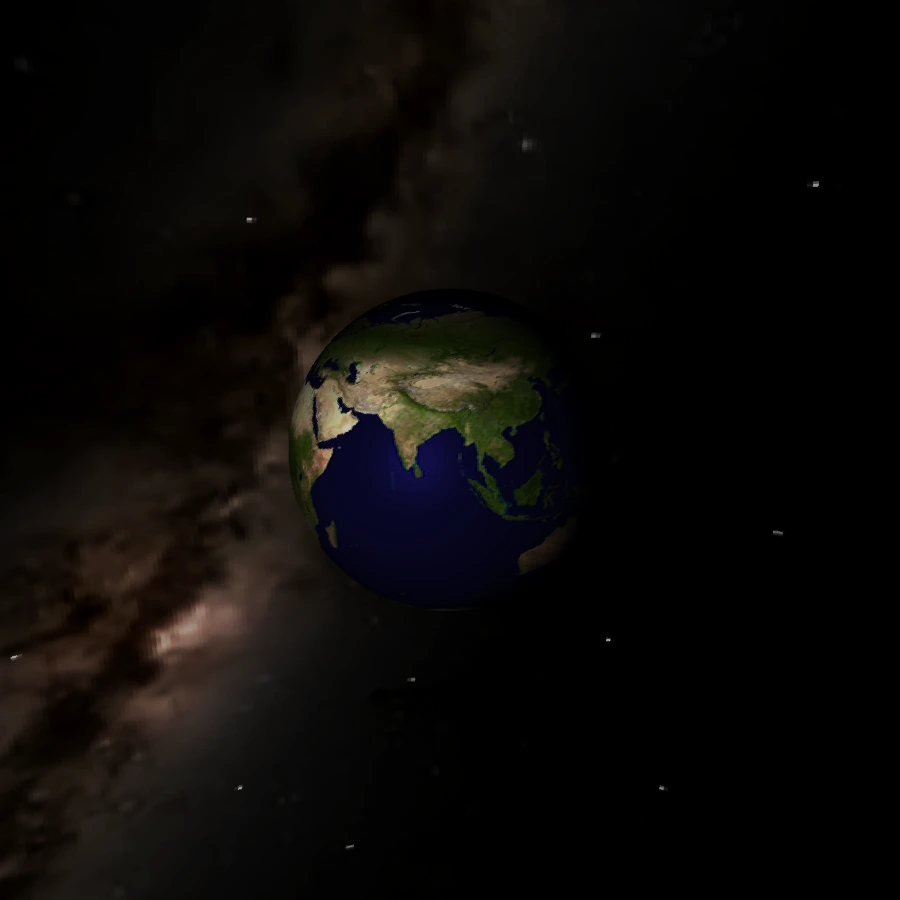
To something like this (take a look at Laos, Eastern Coast of the Arabian Peninsula, Western Coast of Australia, etc to notice the shading difference),
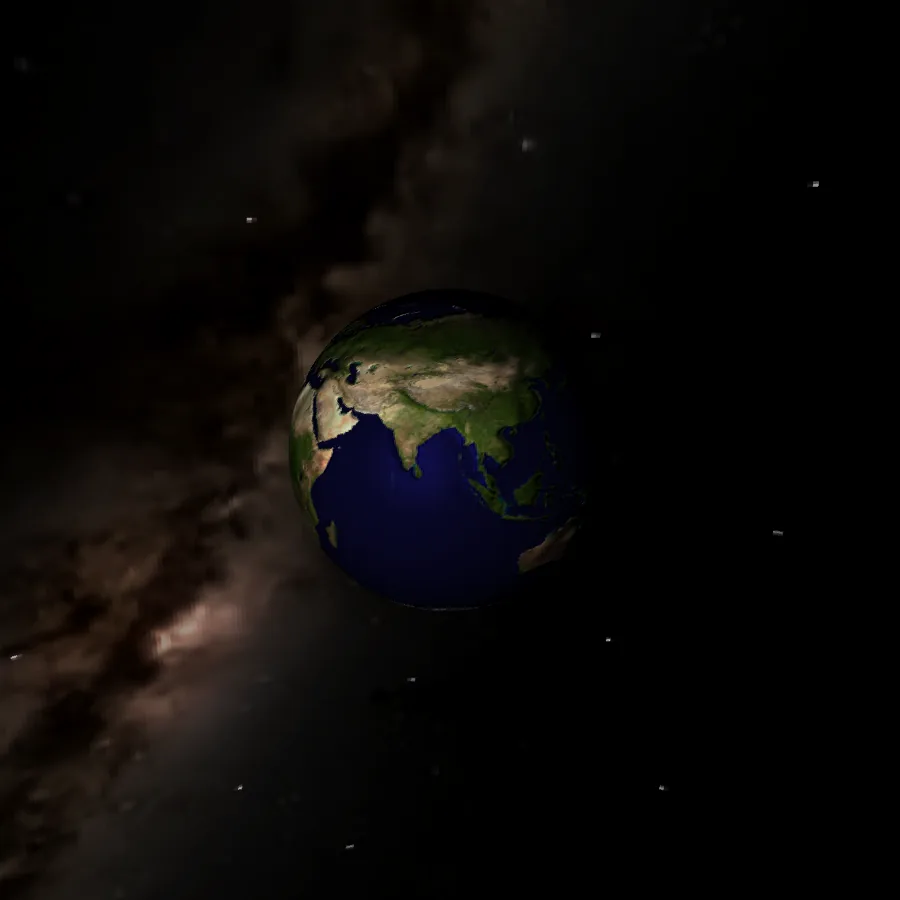
Using a normal map that looks like this:
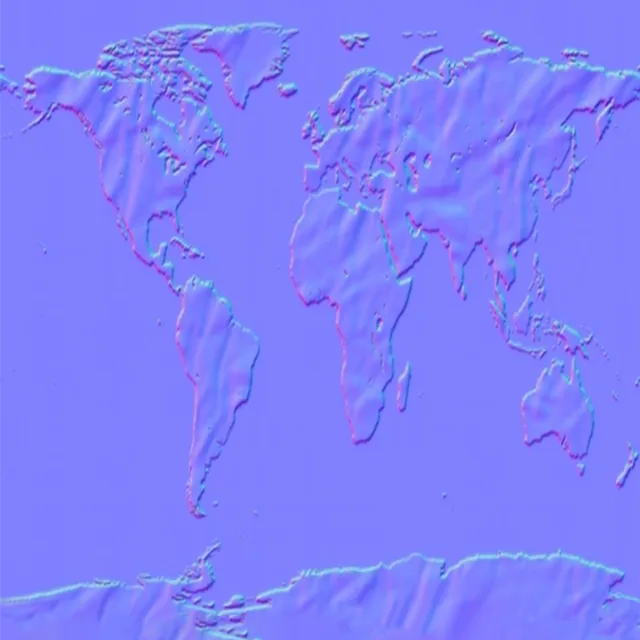
Normal calculation Code in the camera’s ray-shoot function:
Vector normal_orthogonal[3];
normal_orthogonal[0] = Vector(res.normal.y, -res.normal.x, 0).normalize();
normal_orthogonal[1] = res.normal;
normal_orthogonal[2] = (normal_orthogonal[0].cross(res.normal)).normalize();

// new normal =
Color d_normal = Material::get_pixel_from_uv(
    res.UV,
    *(object_s->material.get_normal())
);
Vector d_normal_v = Vector(
    (double)d_normal.r,
    (double)d_normal.g,
    (double)d_normal.b
);
// exchangng b and g due to
// industrial standards of 'Z' in normal maps
d_normal_v = ((d_normal_v / 255.0) * 2.0) -1.0;

res.normal = (
    (normal_orthogonal[0] * d_normal_v.x) +
    (normal_orthogonal[1] * d_normal_v.y) +
    (normal_orthogonal[2] * d_normal_v.z)
).normalize();
// ...
We can then later use res.normal to calculate specularness/roughness, diffuse shading, etc!
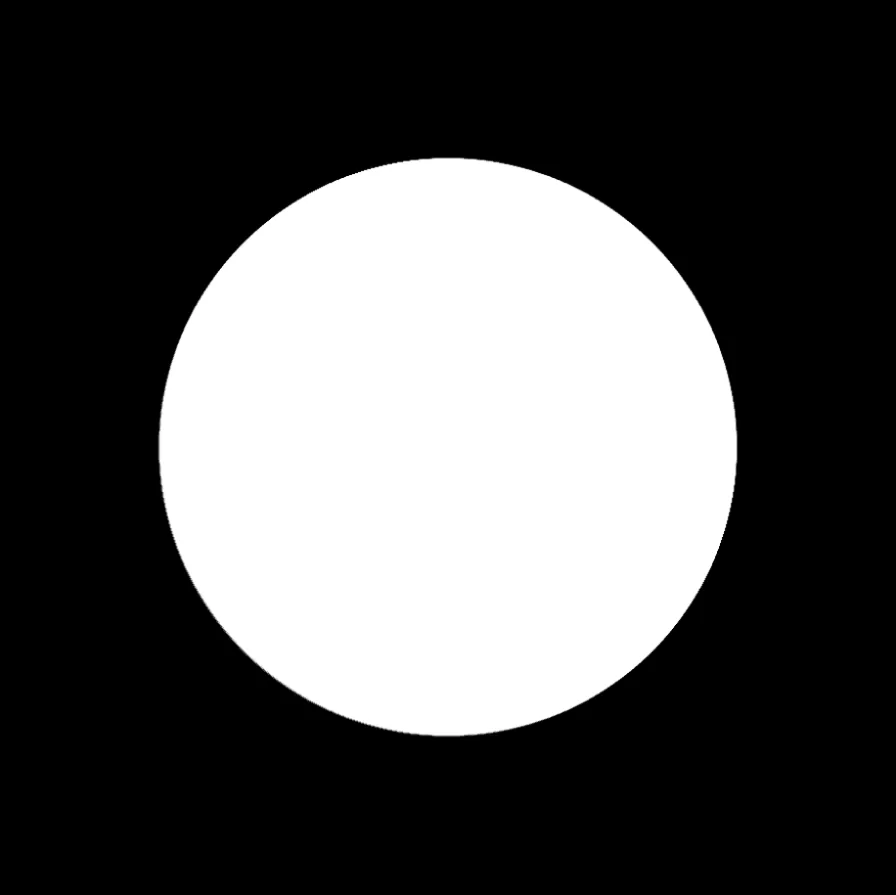
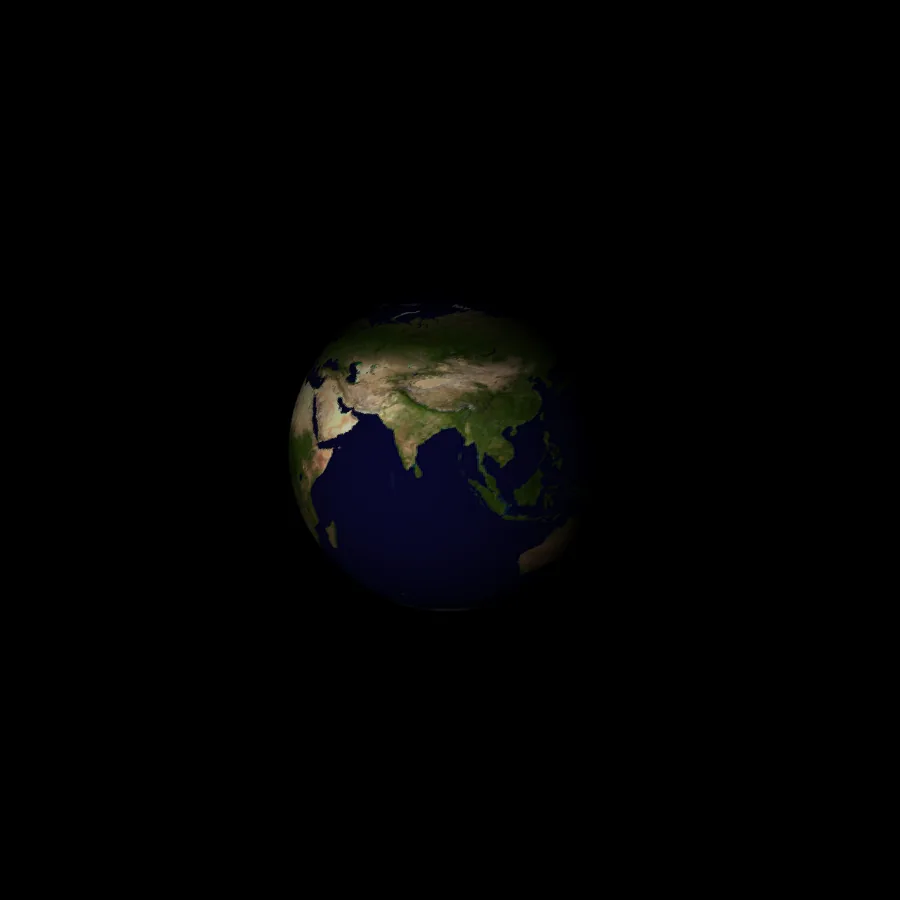
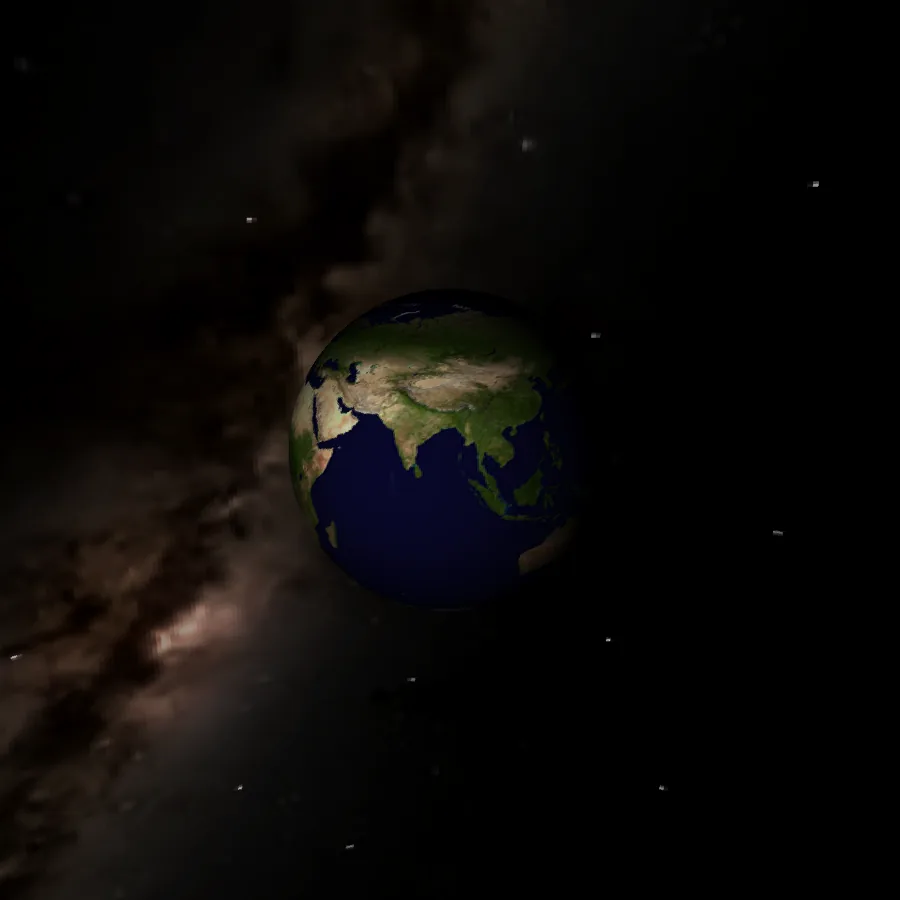
Just a big sphere from the cam's origin as center

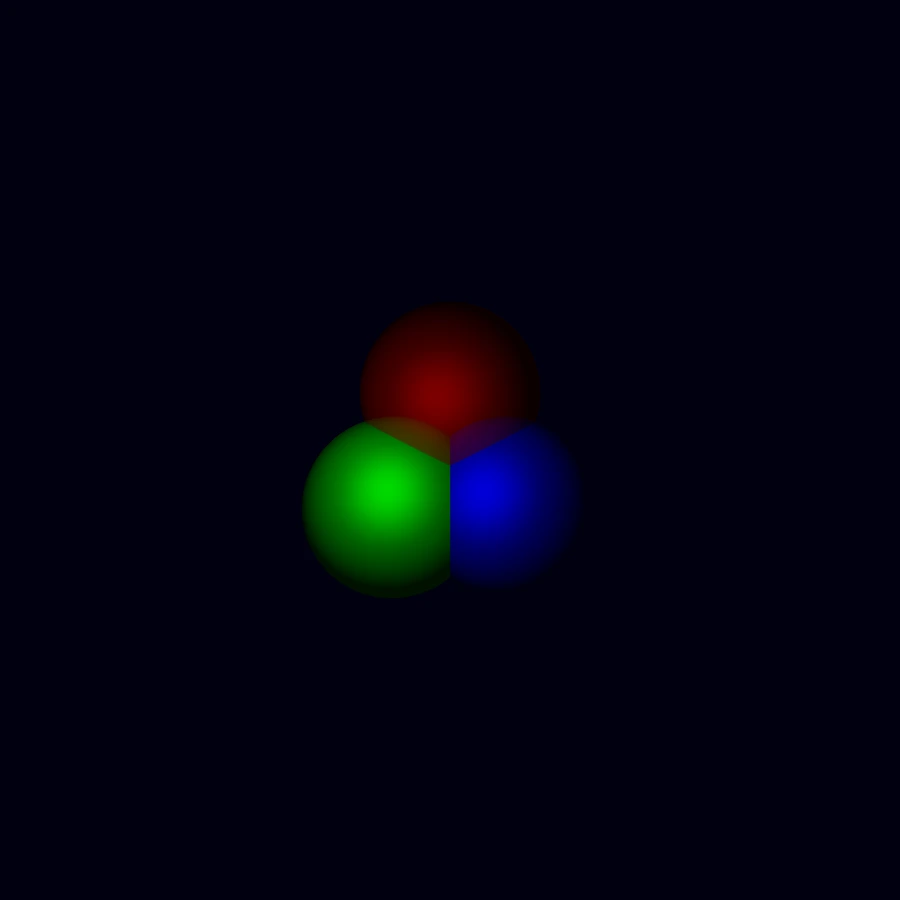
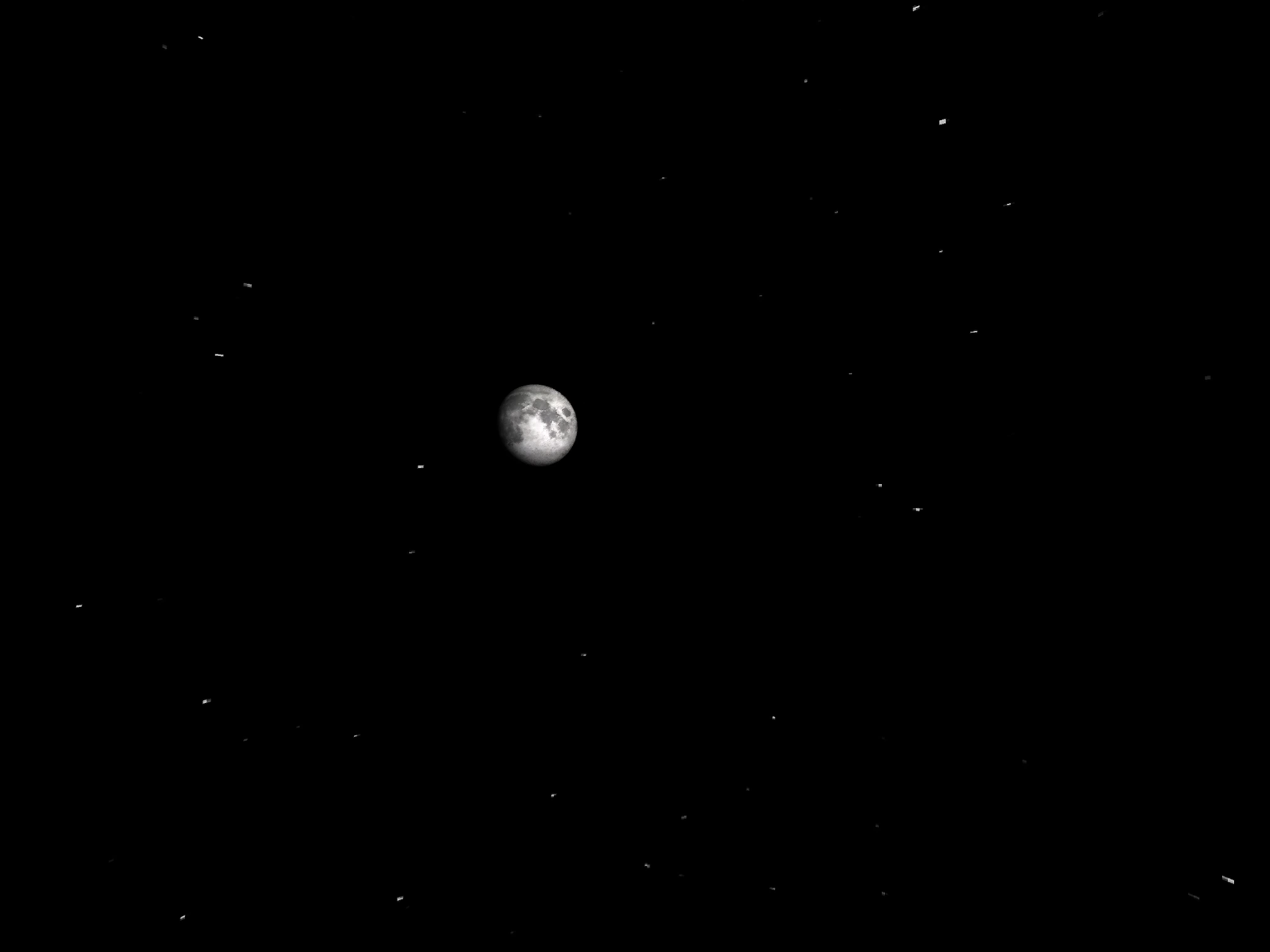
Small Note
For anyone who’s trying to, or atleast wants to build something similar to this, here are a few pointers (Cpp Pun unintended?) to keep in mind!
- It doesn’t matter what language you program this in. I started off by directly implementing this in python, as that was the only language I knew best! I learnt Cpp recently, and as it allows me to manipulate pointers and as such, I shifted my project to Cpp. I am probably not even using the full potential that Cpp gives me, but It doesn’t really matter as far as I’m working on the project.
- Use desmos, geogebra, physical papers to solve equations, and visualize the math going behind the theory. Play around with numbers in your program. Tweak constants, and see what happens!
- Experiment with a bunch of math formulas. Add, subtract, divide and multiply numbers here and there to figure out what’s going on in each equation.
- Most of the references I have used to build my project have sadly been taken down, but there are a lot more university notes available on the internet for free if you want to actually learn the theory behind these calculations!
- Before actually starting the project, I suggest you go through youtube videos explaining how ray tracing works in general.
- Youtube, Reddit, Stackoverflow, are your best friends. Use them as much as you can! Try asking other people for help if you feel stuck.
- The ray-tracer slows down a lot later, especially after adding specular shading if you haven’t parallelized it yet. Until then, you can just focus on adding basic diffuse shading.
- There are various other parts to this project that I didn’t even touch in this devlog, such as parallelizing/multithreading calculations of ray-intersections (the main reason why I shifted to Cpp, and the reason I’m using raw pointers). I don’t exactly know how to implement multithreading in Cpp, which is why I’m using a library called BS_ThreadPool. There is also an Image class which I have written myself which helps me read and write images to disk. It stores the entire image data in one long array, which is easier for me to visualize than a huge matrix while trying to parallelize the calculations. This image class is also responsible for reading images in, such as texture maps. It has 3 modes: RGBA, RGB, Grayscale, to save as much memory as possible.
enum FileType {
    GrayScale = 1,
    RGB = 3,
    RGBA = 4,
};

class Image {
public:
    unsigned char* pixels;
    int height, width;
    FileType filetype;

    Image(
        unsigned int width,
        unsigned int height,
        FileType filetype
    );
    Image(const Color& single_color);
    Image(std::string filename, FileType filetype);
    ~Image();

    void compile(const std::string& filename, bool png = true);
    inline unsigned char* get_pixel(int y, int x) const {
        return (this->pixels) +
            y*(this->width)*(this->filetype) +
            x*(this->filetype);
    };

    void set_pixel(unsigned int y, unsigned int x, unsigned char* channel);
    // ...
}
I also try to imitate anti-aliasing, which is basically a way to make jagged edges more smooth, and I achieve this by taking 4 ray-shoot samples per pixel (in their own directions with a slight deviation), and then averaging out their color values!
The Image now takes even longer to render as you are rendering them at double resolution (in each direction, width and height), and averaging out the pixels!
BS::thread_pool pool;

pool.detach_loop<unsigned int>(0, this->width * this->height,
    [&render, this, scene](unsigned int i)
    {
        // [(i//h, i%h) for i in l] where l is width * height
        int x = 2 * (i / this->height);
        int z = 2 * (i % this->height);

        int dx = x - this->width;
        int dz = z - this->height;

        Line ray1 = Line(this->origin,
            (this->orthogonals[1] * this->focal_length) +
            (this->orthogonals[0] * dx) +
            (this->orthogonals[2] * dz)
        );
        Line ray2 = Line(this->origin,
            (this->orthogonals[1] * this->focal_length) +
            (this->orthogonals[0] * dx + 1) +
            (this->orthogonals[2] * dz)
        );
        Line ray3 = Line(this->origin,
            (this->orthogonals[1] * this->focal_length) +
            (this->orthogonals[0] * dx) +
            (this->orthogonals[2] * dz + 1)
        );
        Line ray4 = Line(this->origin,
            (this->orthogonals[1] * this->focal_length) +
            (this->orthogonals[0] * dx + 1) +
            (this->orthogonals[2] * dz + 1)
        );

        ResultIntersection intersection1 = this->ray_intersect_nearest_obj(
            scene, ray1, 1, -1, -1);
        ResultIntersection intersection2 = this->ray_intersect_nearest_obj(
            scene, ray1, 1, -1, -1);
        ResultIntersection intersection3 = this->ray_intersect_nearest_obj(
            scene, ray1, 1, -1, -1);
        ResultIntersection intersection4 = this->ray_intersect_nearest_obj(
            scene, ray1, 1, -1, -1);
        // color data is stored inside this ^^ variable

        // using 3 as I don't want heap allocation.
        // Renderer only works on RGB, so statis 3 is enough.
        unsigned char channels[3] = {
            (
                intersection1.color_of_intersection.r +
                intersection2.color_of_intersection.r +
                intersection3.color_of_intersection.r +
                intersection4.color_of_intersection.r
            ) / 4,
            (
                intersection1.color_of_intersection.g +
                intersection2.color_of_intersection.g +
                intersection3.color_of_intersection.g +
                intersection4.color_of_intersection.g
            ) / 4,
            (
                intersection1.color_of_intersection.b +
                intersection2.color_of_intersection.b +
                intersection3.color_of_intersection.b +
                intersection4.color_of_intersection.b
            ) / 4,
        };

        render->set_pixel((this->height - z), x, channels);
    },
    4
);

pool.wait();
Then there’s also the frontend part where I have to arrange the spheres and the lights in a good way so I can present them. I also need math, (especially sin and cos functions) if I want to animate them in a certain way.

I’m really proud of the fact that I could figure most of the concepts using basic derived logic and very simple math formulas from my 11th and 12th grade classes. I only ever used other references only if I was seriously stuck.
References
- https://cal.cs.umbc.edu/Courses/CMSC435-F15/Slides/raytrace.pdf
- https://www.youtube.com/watch?v=gfW1Fhd9u9Q&list=PLlrATfBNZ98edc5GshdBtREv5asFW3yXl
- https://www.youtube.com/watch?v=Qz0KTGYJtUk
- https://en.wikipedia.org/wiki/Ray_tracing_(graphics)
Enjoy Reading This Article?
Here are some more articles you might like to read next: